Showing posts with label Chrome Apps. Show all posts

Thursday, July 3, 2014

Sunrise Calendar App: Free App for Mac, Chrome Desktop, iOS or Android Devices

Sunrise Calendar App is an excellent way to gain access to your Google Calendars across multiple platforms. Recently, Sunrise became available as a stand-alone Mac App in addition to being available for iOS devices, Android devices, and Chrome. The best thing about Sunrise right now is that it’s free. It is easy to use and simply gives you easy access to your Google calendar. You can also connect some social media accounts such as Twitter and Facebook, as well as Evernote. It’s simple interface makes it an excellent choice for a Calendar app across all your devices.

Sunrise
Sunrise Mac App Interface

Here are some other interesting features of the Sunrise Calendar App.
  • Compatible with Google Calendar, iCloud and Exchange
  • Synchronizes in real time
  • Quick Add Event Feature
  • Reminders
  • Connect to multiple Google Calendars
  • Supports Mac notifications
  • Offline Mode
If you’re looking for a calendar app for your Mac, Desktop or handheld device, you will find Sunrise Calendar App's simplicity and ease of use reason enough to download it today. For more information about the Sunrise Apps, check out their web site (https://calendar.sunrise.am/).

Thursday, January 26, 2012

Kindle Cloud Reader Adds Highlighting and Note Taking

Kindle Cloud Reader just got better with 2 added features that make it as functional as a Kindle or as the Kindle iPad or PC App. Back in December, I listed the Kindle Cloud Reader as one of My 11 Favorite Chrome Browser Apps and Extensions. In that post, I indicated that there were 3 things I wished the Kindle Cloud Reader would give me the ability to do: 1) highlight text, 2) enter reading notes, and 3) access my newstand items.

Users of Chrome's Kindle Cloud Reader app can now:

  • Access their Kindle books from their cloud library.
  • Highlight text in those books.
  • Enter notes about the text.
  • Add bookmarks
  • Customize reading experience by adjusting things like the font and margin size and the backlighting of text.

Kindle Cloud Reader's Highlighting and Note Taking Features


Kindle Cloud Reader is a functional Chrome app that every serious Kindle user must have. To download the app, visit the Chrome Web Store.

Saturday, December 17, 2011

Free and Easy to Use QR-Code Generator for Chrome Browser

Earlier in the week I posted “My 11 Favorite Chrome Browser Apps and Extensions” and several posts this week about my favorite Chrome apps and extensions. After that posting, someone suggested another app to that list: the QR-Code Generator app. (See the Chrome Web Store Link.)

Chrome Web App: QR-Code Generator Screenshot

There is a great deal of excitement recently about the possibilities of using QR-Codes as an instructional tool in the classroom, especially with the proliferation of mobile devices such as smartphones and iPads that give users the ability to read these codes.  Still, I’ve been pondering just how I might incorporate the use of QR-codes in my role as administrator. I have experimented by posting links to outside documents using a QR-code before but that is about the extent of my experimentation with them at this point.

The QR-Code Generator App has me again pondering how to use these codes because it is so easy to use. This app allows users to generate QR-Codes for free text, URLs, phone numbers, SMS (text messages), and contacts. It is simply a matter of entering the information, and the app gives you a QR-Code, ready to be read with code-reader software.

Guess Who?
So, applications for 21st century administrators? Some ideas that come to mind include: contact lists for students and staff, schedules, and URL sharing as a start. I’ve just began to experiment with the QR-Code Generator, so I’m not sure of it’s uses yet, but I do enjoy playing with it. Maybe some readers have ideas on how to use QR-Codes in the role of administrator.

Tuesday, December 13, 2011

Easy-to-Use Screen Capture Tool: Awesome Screen Shot

Yesterday, I posted about the “Send to Kindle” extension and how useful it was to Kindle users. Amazingly, there are quite a few other extensions in the Chrome Web Store that are just as useful. One of those versatile Chrome Extensions is the Awesome Screenshot Extension. This is another must-have Extension for the Chrome browser user. (Firefox and Safari users can add the extension to their browsers too.)

The Awesome Screenshot Extension is a tool that allows users to do three basic things: 1) capture a Web page image, 2) annotate and edit that image, and 3) save or share that image. Because Awesome Screenshot can be synced with your Diigo account, you can upload those captured screenshots to there and share them with your groups or followers.

To begin capturing a Web page is as easy as clicking on the Awesome Screenshot button located in the top right-hand corner of your Chrome Browser.

Awesome Screenshot Button
Once you click the browser button, you have three capture choices: capture visible part of the page, capture the selected area, and capture the entire page. Once you select what you wish to capture, it immediately appears in another browser window or tab. From this screen, you can edit, annotate, add arrows, and add shapes. Once you are finished annotating, you can either save the map locally on your computer, save it temporarily on your clipboard, or save it permanently in your Diigo account.

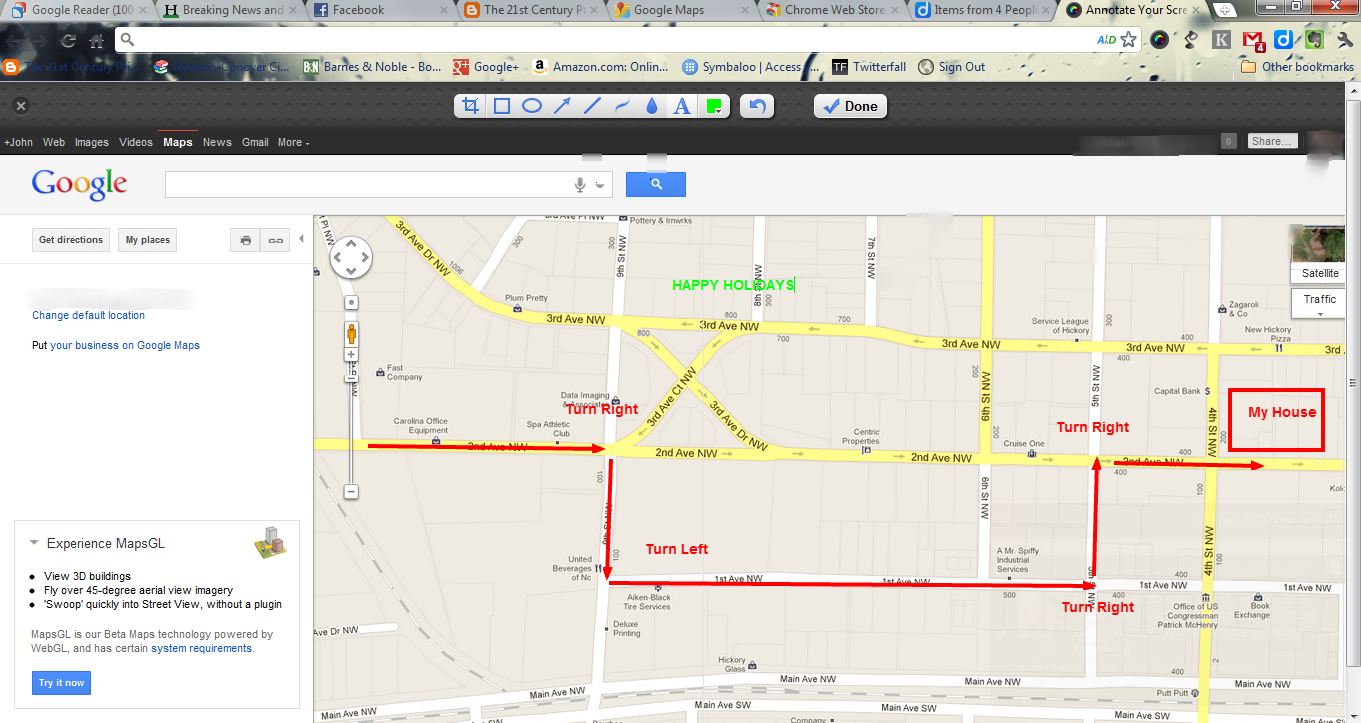
Awesome Screenshot Annotation Screen
Awesome Screenshot is another extremely useful extension for your Web browser. It is available for Firefox and Safari browser users too. 

Sunday, December 11, 2011

My 11 Favorite Chrome Browser Apps and Extensions

NOTE: I CAN NO LONGER RECOMMEND EVERNOTE TO USERS. SINCE ITS ACQUISITION IN 2023 BY BENDING SPOONS, THE PRODUCT HAS BECOME RIDDLED WITH BLOATWARE AND NOT USABLE AS IT ONCE WAS. THERE ARE BETTER PRODUCTS AVAILABLE FOR NOTE TAKING.

I have not hid the fact that Chrome is my browser of choice, and from the looks of articles like this one, “Google’s Chrome Browser Surging Past Firefox”, it looks many more are beginning to choose the browser as their favorite. One of the features of Chrome that I like are the extensions and the Apps that can be downloaded and used.
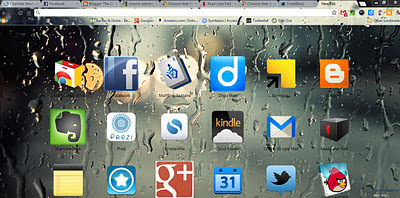
Chrome Apps Page
For those not familiar with Chrome extensions and Chrome apps, the difference between the two is that Chrome Extensions run within the browser window from a button located in the upper right hand corner and a Chrome app is an application that runs in its own browser window, usually accessed through an icon on the apps page within the browser. While Firefox offers its users the same experience, I have grown to appreciate the reliability and functionality of the many apps and extensions within my Chrome browser.

While I have posted my favorite Chrome Extensions and apps before, my list of favorites has changed a bit since then. Here's my latest.

Quick Note: Quick note is another one of those apps that make it possible to be paperless. With Quick Note, users can quickly add and edit notes. Notes that are added are fully searchable, and if you have a Diigo account, you can sync those notes to the cloud. That means you can use Diigo’s Web and sharing capabilities to both access your notes and share them with your Diigo groups. Those developing the app indicate in the Chrome Web Store they may integrate the app with other Web tools like Evernote and Dropbox in the near future. Quick Note is a simple to use note taking tool located right in  your browser.
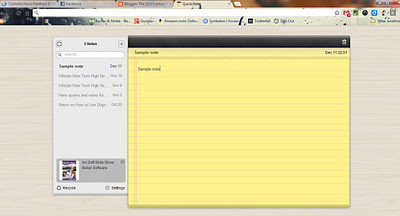
Quick Note
Kindle Cloud Reader: About eight months ago, I became an avid e-book reader. I own two Kindles, and I have the Kindle app on every PC I use and on my iPad. I even have the Kindle app on my Android phone. With the Kindle Cloud Reader, I can access my growing Kindle e-book library even on machines that do not have the Kindle application installed. In addition, the Kindle Cloud Reader has a sleek interface and is so easy to use, there are times when I simply use it to read my books. Currently there are three things I wish I could do in the Kindle Cloud Reader that I can’t do: 1) Highlight text, 2) Enter reading notes, and 3) Access my newsstand items. I can see text I’ve highlighted in other Kindle Apps, but I can’t highlight. Also, there are times a thought occurs to me while reading, and I love being able to attach it to the text. As far as accessing my Newsstand items? I would love to be able to check out my newspaper and magazines from the Kindle Cloud Reader too. Still, reading from the Cloud Reader is a pleasant and easy experience.
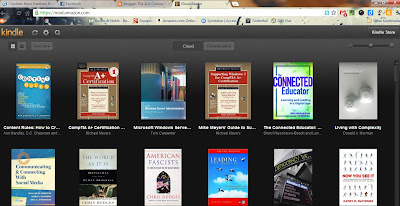
Kindle Cloud Reader
Read Later Fast: I’m just learning about the power of this app. I’m always stumbling across a Web article that I just don’t have time to read. With this app, I can post an article to my Diigo account for future reading. I can even include the graphics. Read Later Fast integrates entirely with my Diigo account and adds another level of flexibility to an already versatile web tool. I can open these Web articles using this app and read according to my schedule.
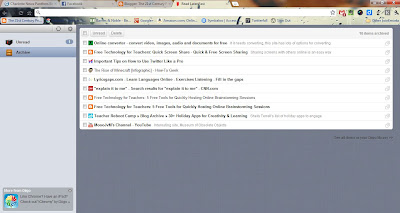
Read Later Fast
Offline Google Mail: This app basically gives me an interface for my Gmail account and allows me access email offline. You can also compose email which is stored and later synced with the Web. Offline Google Mail is an excellent email client right in your Chrome Browser.
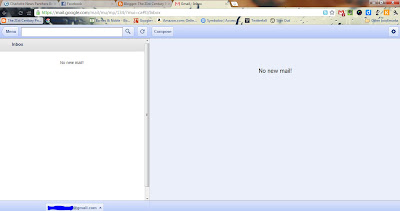
Offline Google Mail
Tweetdeck: Tweetdeck also has a Chrome app as well. This app works pretty much like the separate Tweetdeck app. Twitter recently updated this interface to look exactly like its desktop Tweetdeck app. Twitter users will find this app works as well as the other Tweetdeck products.


Here is a list of my favorite Chrome Extensions.

Evernote Clearly: This extension takes a blog post, article or Web page and transforms it into an easy-to-read format and then places it into your Evernote account. That means you can later access these articles with any device running an Evernote app. This is one of the must-have Chrome extensions. I was even able to convert an article to a PDF and send it to my Kindle to read there.
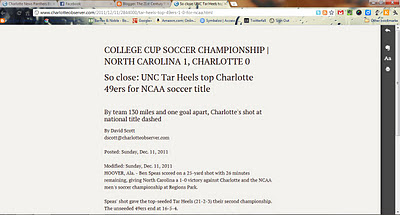
Evernote Clearly Interface
Diigo Toolbar: This extension is one of my most used. I have posted about it before. It allows users to highlight, bookmark, add a sticky note, or share a web page with basically the click of a button. Diigo users will love adding this tool to their browser. An excellent extension that adds even more functionality to your Diigo account.
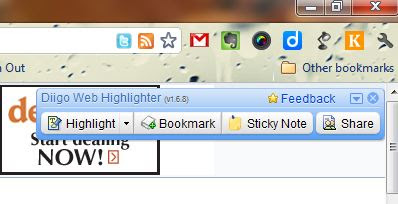
Diigo Extension Toolbar
Awesome Screenshot: This tool allows users to take snapshots of Web pages and the screen, annotate them, then save them either on the desktop or into your Diigo account. This is a very useful extension for capturing graphics for later sharing. It is also another extension to add functionality to your Diigo account.
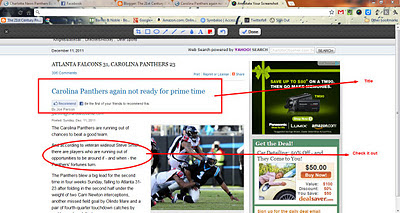
Awesome Screenshot
Evernote Web Clipper: There are many times I stumble across a Web page that I might want to share or use later. The Evernote Web Clipper allows users to clip those pages and place them directly into one of their Evernote notebooks. This extension adds functionality to your Evernote account.

Twitter Share This Page: There are quite a few times I find a Web article that I just have to Tweet out. This extension puts a button in my Chrome browser that allows me to do just that. When I find a page to share with my PLN, I can click on this button, edit the outgoing message and just Tweet it out. URL’s are automatically shortened too. Must have extension for Twitter users who use the Chrome browser.

Send to Kindle: This extension allows users to send any Web content they find to their Kindle for later reading. For example, suppose you stumble on an article of length that you would like to spend some time reading later. You can use the Send to Kindle extension to put it on your Kindle.

As more and more Chrome apps and extensions become available, my favorite list grows. Chrome apps and extensions are ways to get the most out of both the browser and your favorite Web tools.

Sunday, September 25, 2011

Must Have Chrome App: Kindle Cloud Reader

A few weeks ago I began using a great new Chrome App called the Kindle Cloud Reader. Every once in awhile someone develops one of those simple, but have to have applications and this is one of those. I already have access to my Kindle library from my iPad and my Kindle. I also have access to my books on both my laptops through Kindle e-reader apps that I've downloaded and installed. The beauty of the Kindle Cloud Reader app for Chrome is its simplicity. I can click and open the book I'm reading and just start reading. I can download a book for offline reading if I want to be able to read it without web access. I can change the font sizes, the margins and the background color just as I can in the Kindle e-reader app. One thing you can't do yet with the Kindle Cloud Reader app is highlight text and make notes. If you have highlighted text in the other Kindle applications it will be highlighted in the Kindle Cloud Reader app. You must add the Google Chrome Kindle Cloud Reader to your list of must-have Chrome apps if you are Kindle reader. It gives you one more level of access to your Kindle library.

Kindle Cloud Reader Chrome App Main Screen