Showing posts with label iPhone apps. Show all posts

Friday, December 11, 2015

“After School:” Mobile SM App for High Schoolers Offers Potential Headaches for Educators

Yesterday, I stumbled across this post on the Washington Post web site: “Millions of Teens Are Using a New App to Post Anonymous Thoughts, and Most Parents Have No Idea.” It turns that our students now have access to a high school version of the app Yik Yak called “After School.” Yik Yak has been quite popular among college age users for some time. For those not familiar with Yik Yak, or the high schooler app After School, these apps allows users to post messages anonymously that only other users in the general vicinity of the message poster can see. Apps like Yik Yak have been implicated in posting anonymous threats and cyberbullying online. (For example, see “What Is Yik Yak, the App That Fielded Racist Threats at the University of Missouri.”) What’s more, this “After School” app is also at the heart of possible postings of cyberbullying and postings where users threaten to bring guns to school. (See “Why Parents and Administrators Are Freaking Outv About an App Called After School.”)

It is easy to sound the alarm when these kinds of social media platforms arise, but it turns out that this particular app has been around at least a year. It appeared in the App Store and the Google Play Store last fall according to web site Fusion (See here), but it was removed twice because it was used for cyberbulling and posting gun threats. It returned this past April, and its developers claim to have a whole bunch of new safety features, including algorithms that block certain words and it is also said to use human reviewers who examine each post.

Well, for those of us familiar with web filters in schools, we know all too well that the best of these kinds of safety measures are far from foolproof. Many students are masters at trying to get things through the filters, and we’ve given them years of practice. But my beef with After School actually goes beyond that and is captured best by a question: Why in the world would we give high school students an anonymous platform like this when we know from experience that many are not ready to handle the freedom of any posting much less “anonymous posting?” It seems to be the equivalent of giving students the keys to a sports car with a cooler full of beer in the front seat and simply telling them not to drink and drive. After School is simply a platform that has the potential to facilitate irresponsiblity and possibly dangerous cyber-behaviors because students often thrive on web anonymity.

What’s more, I take exception to After School’s FAQ page which seems to suggest by its language there that schools have somehow endorsed this product. (See the After School FAQ page here.) On that page it states at the very top, “Anonymous and Private Message Board for Your School.” Those words seem, at first glance, to make a link between the message board in After School and the school the student attends, but that is far from the case. The school and its administration have no connection, control, or power over this product. That’s why many school administrators are quite upset about this product.
I am not sure an all out panic about this product is warranted, but I do think we need to educate both our students, and especially our parents about the potentially dangerous uses of this app.

We also need to make clear that this app basically allows students to set up their own cyber community, totally disconnected from our schools, that is supposedly monitored by this company. We as parents and educators, by allowing our students and children to use this app, are placing a large amount of trust in algorithms and faceless individuals out there somewhere to monitor the safety. The truth is, we at the school and district level, with all our web filters and cyber-safety gadgets have an extremely difficult time with cyberbullying and web threats. What on earth would make us think that out there in cyberspace a company can do that better? While After School has been around and is not really new, it operates on assumptions that ultimately will probably cause its own demise. That is the idea that anonymous posting for high schoolers can be effectively monitored. Just looking at their disclaimers in the app store should be concern enough. Check it out:

That’s quite a laundry list of items of things parents would object to having their students exposed to.

I don’t usually rate apps with thumbs up or thumbs down, but this one gets double thumbs down because it is a potential cyberdisaster at every school.

Tuesday, February 17, 2015

Evernote's Scannable: A Powerful But Simple-to-Use Scanning App for Your iPhone or iPad

UPDATE: EVERNOTE IS NO LONGER AN ACCEPTABLE OPTION FOR ME. IT IS HAS MORPHED INTO A COMPANY THAT NO LONGER PUTS USERS FIRST.


Evernote just got even more useful for me with its new iOS app Scannable.
In many of my past posts regarding Evernote, I have made it clear that the Evernote note taking application is my everyday "go-to" app in both my professional and personal life. With all the smartphone apps, desktops apps, and browser extensions, Evernote makes note taking and web curation simple and easy.

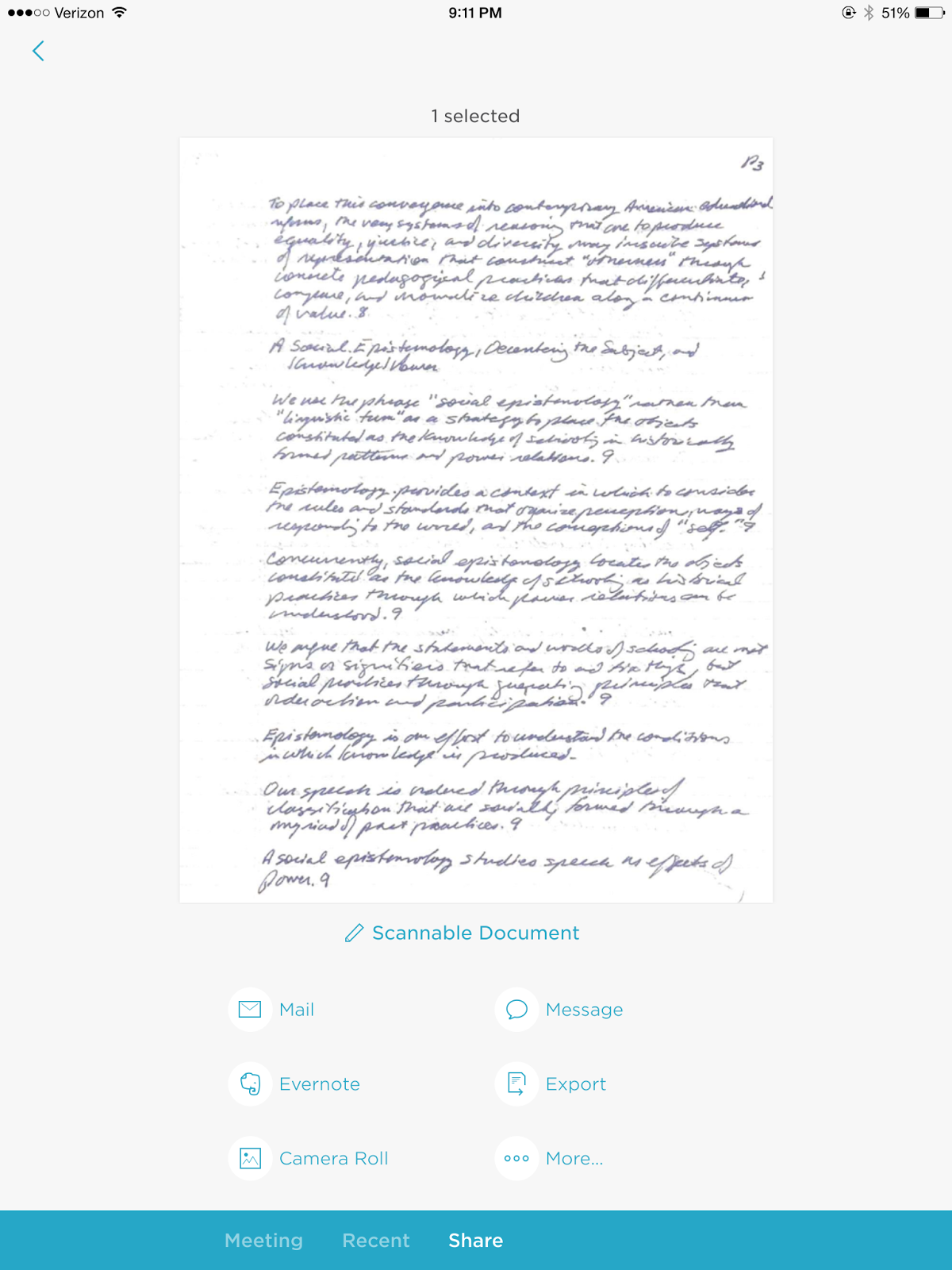
Now, they've added an iOS app called Scannable. With this app, you can scan any document with your iPad or iPhone. You can then send it to someone by email, upload it to an Evernote notebook, place it in your photos, send it through the messaging app, or export it any number of your iCloud apps. It's rather simple interface is an added benefit.

Evernote's Scannable is definitely another one of those apps you'll want to download and use with your iOS devices.

Scannable Document in Evernote Desktop App


Scannable Interface in iOS

Scannable is excellent choice for quickly capturing any document, whether it be a handwritten note, receipt, memo, or sticky note. 

Thursday, July 3, 2014

Sunrise Calendar App: Free App for Mac, Chrome Desktop, iOS or Android Devices

Sunrise Calendar App is an excellent way to gain access to your Google Calendars across multiple platforms. Recently, Sunrise became available as a stand-alone Mac App in addition to being available for iOS devices, Android devices, and Chrome. The best thing about Sunrise right now is that it’s free. It is easy to use and simply gives you easy access to your Google calendar. You can also connect some social media accounts such as Twitter and Facebook, as well as Evernote. It’s simple interface makes it an excellent choice for a Calendar app across all your devices.

Sunrise
Sunrise Mac App Interface

Here are some other interesting features of the Sunrise Calendar App.
  • Compatible with Google Calendar, iCloud and Exchange
  • Synchronizes in real time
  • Quick Add Event Feature
  • Reminders
  • Connect to multiple Google Calendars
  • Supports Mac notifications
  • Offline Mode
If you’re looking for a calendar app for your Mac, Desktop or handheld device, you will find Sunrise Calendar App's simplicity and ease of use reason enough to download it today. For more information about the Sunrise Apps, check out their web site (https://calendar.sunrise.am/).

Monday, July 8, 2013

Got a New iPhone? Here's 17 Starter Apps

Recently,our district changed providers and changed phones. As a result, we are now using iPhones. As a avid user of an iPad, deciding which apps to put on my phone was an easy decision. I immediately wanted to be able to access the same applications I can already access on my iPad and on my desktop or the web.

Here's my must-download list of iPhone apps.


QR Reader: This is my QR code scanner of choice. Scanning is quite easy. I can even create QR codes within this app. There is a free version with ads, which is what I am currently using, and a paid version too. In an era where QR codes and bar codes are everywhere, it makes little sense to have a mobile device without the ability to scan these. For more information regarding QR Reader for the iPhone, check it out in iTunes. QR Reading in iTunes

Wunderlist: Having a task management app is a must. Having one that allows access across devices and on the web is also a must. Wunderlist gives me that option. I can access my "To-Do List" on my desktop, the web, my iPad, and my iPhone. Tasks entered in any of these locations are synced across devices as well. For more information about Wunderlist, check out their web site. Wunderlist Web Site

Dropbox: Dropbox has lost it's luster for some people who have had difficulties with what they say are lost files or trouble with syncing operations on multiple computers. I have had few difficulties like this, so I still use Dropbox to save files to the cloud. I also like the photo-syncing feature as well, so any photos I take automatically load to dropbox, hence down to my computer. Dropbox Web Site

KustomNote: KustomNote is a new app that I recently added to my lineup. As a heavy Evernote user, this application gives me the ability to create customized templates for collecting information, that is then stored in my Evernote account under the notebook I select. With this app I can create a simple template for taking meeting notes that are stored in my Evernote account. For more information about KustomNote and its app, check out their web site. Here's an article that gives you an excellent overview of KustomNote. MakeUseOf Article on Kustomnote

Calendars+:  This is an easy to use calendar app that syncs with all your Google Calendars. Since our district uses Google Apps, I have access to multiple district Google calendars, so this apps makes syncing those calendars quite simple. For more information, check out Calendars+ in the iTunes Store.

vJournal: vJournal is an app that allows me to create dated entries, like a journal, and then it syncs those entries to my Evernote Journal notebook. It creates a new dated entry every time you enter information. This is an excellent app for logging events or ideas. For more information about vJournal, check it out in the iTunes Store.

Google Drive: Having an additional access point to my Google Drive documents is priceless. There are countless times when I am asked about a document, and turn to this application to review or access that document. This app is especially useful if you school or district uses Google Apps. For more information about the Google Drive app, check it out in the iTunes store.

iKeePass: iKeePass is a program that allows you store and access passwords for all your software and web sites. This app is compatible with the open source desktop program KeePass as well. Using this program allows you to access your passwords through your iPhone. I have it on my iPad as well. For more information regarding iKeePass, check it out in the iTunes Store.


Gmail: This app allows me to access my email accounts. Since I have both a personal and a school Gmail account, with this app I can sync both accounts to my iPhone. I also use the same app on my iPad. It is easy to use. For more information on the Gmail app, check it out in the iTunes Store.

Twitter: Being a heavy Twitter user, having access to that social media app on my iPhone too, is a must. The Twitter app works sufficiently well to provide that access. For more information on the Twitter app, check it out in the iTunes Store.

Google Voice: Google voice allows me to set up a voice mail account, and it allows me to send text messages through my iPhone. For more information regarding the Google Voice app, check it out in the iTunes Store.

Facebook: Like Twitter, I do use Facebook to connect with others. The Facebook app for the iOS works just fine for my needs. For more information regarding the Facebook app, check it out in the iTunes Store.

Google+: I also like having access to my Google+ account on my iPhone as well. For more information regarding this iOS app, check it out in the iTunes Store.

Feedly: Feedly is now my primary RSS reader since the demise of Google Reader. Having access on my iPhone allows me one more place to access my favorite blogs and news sources. For more information regarding the iOS version of Feedly, check it out in the iTunes Store.

Flipboard: Flipboard is essentially another RSS reader, but it gives you an magazine-like look to your resources. I use this to access my favorite news and media sources. For more information regarding the iOS version of Flipboard, check it out in the iTunes Store.

Pocket: Pocket is a tool I use to collect RSS reads for later use. Having access on my iPhone, my iPad, and the web means I can view these articles anywhere I happen to be. For more information regarding Pocket, check it out in the iTunes Store.


For me the important thing is being able to access my most useful and often-used applications across devices. When I received my iPhone, these are the apps I immediately downloaded and installed. It is also an excellent iPhone starter-app list too.

Monday, June 18, 2012

Access to Amazon Cloud Music Comes to iPad and iPhone

The Amazon Cloud Player has finally come to the iPhone or iOS. Now users who have music in the Amazon Cloud Drive can listen to that music on their iPhone or iPad.  Here’s some of the best features of the Cloud Player for iOS. 
  • Use your 5 GB Amazon cloud space to store music that can no be accessed from any device, whether its an Android tablet, iPhone, or computer desktop.
  • The Amazon Cloud Player interface could not be simpler to use.
  • Create playlists easily.
  • Tell the app to only download and stream when connected to Wi-Fi.
  • Tell the app to auto-download Amazon MP3 purchases.
  • Add songs from your iTunes library.
  • Upload you iTunes music to your Amazon Cloud Drive.
  • Standard easy-to-use playback controls.
iOS Amazon Cloud Player Interface

These features are what we would expect from an MP3 music player. While the app is displays nothing out of the ordinary, it is a plus for those who have been storing their music in their Amazon Cloud Drive. Check out the app from here.