Wednesday, December 14, 2011

Clearly from Evernote: Collect Web Content for Your Evernote Notebooks

NOTE: I CAN NO LONGER RECOMMEND EVERNOTE TO USERS. SINCE ITS ACQUISITION IN 2023 BY BENDING SPOONS, THE PRODUCT HAS BECOME RIDDLED WITH BLOATWARE AND NOT USABLE AS IT ONCE WAS. THERE ARE BETTER PRODUCTS AVAILABLE FOR NOTE TAKING.

Clearly from Evernote is yet another one of those quite useful Chrome browser extensions, especially for those who have an Evernote account.
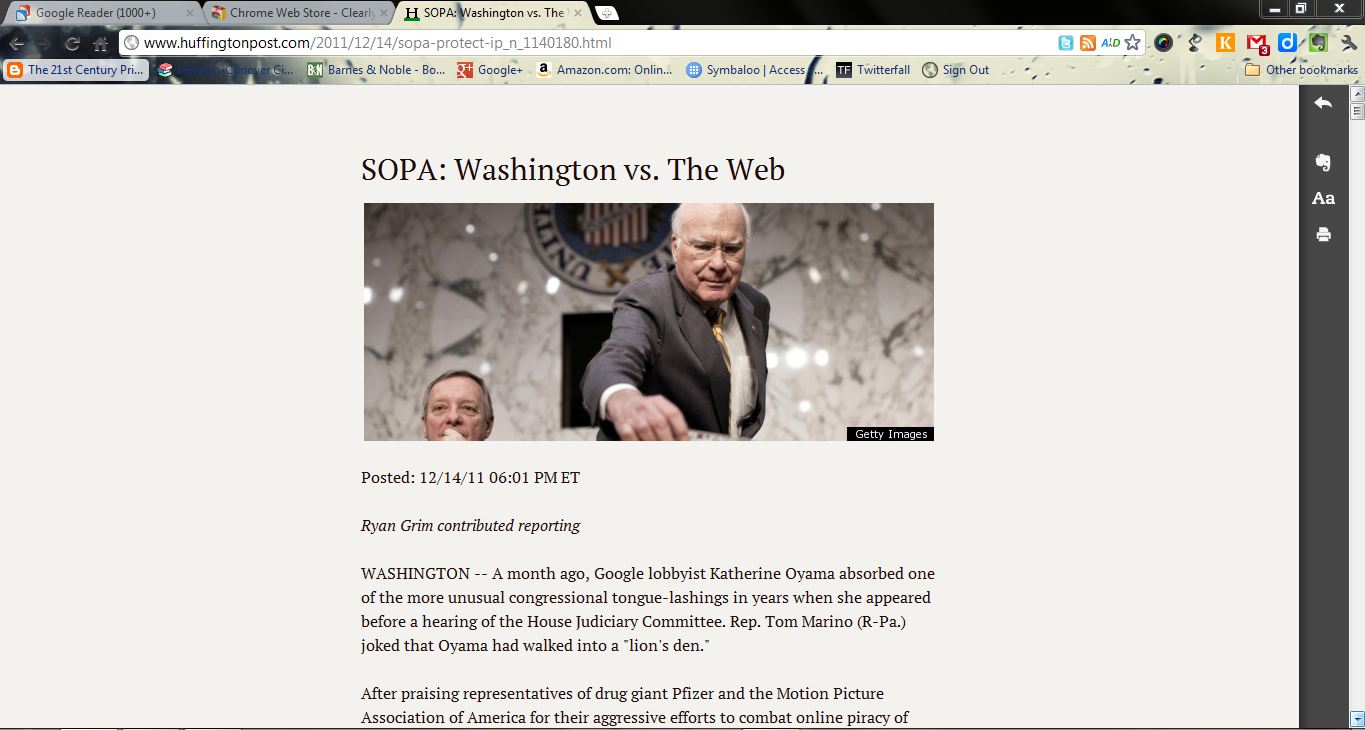
One click of the button and a Web article is transformed into a simplified and uncluttered read. Four basic functions make this browser extension and addition to the must-have list for your Chrome browser.
  • The basic function of Clearly is to transform blog posts and Web articles into a format that is easy and clean to read.
  • By connecting Clearly to your Evernote account, you can make that Web content available on any device either connected to the Web or that has the Evernote application installed.
  • Tag articles sent to your Evernote account so that they are easily accessed and retrieved.
  • Change the theme  and the font size to make the article or Web page more readable.
Clearly Interface
Evernote users who want to capture Web content without all the distractions and make it available in all their devices, will love Clearly. For more information, check out the Chrome Web Store.

21stprincipal to Be at NCTIES Conference 2012

NOTE: I CAN NO LONGER RECOMMEND EVERNOTE TO USERS. SINCE ITS ACQUISITION IN 2023 BY BENDING SPOONS, THE PRODUCT HAS BECOME RIDDLED WITH BLOATWARE AND NOT USABLE AS IT ONCE WAS. THERE ARE BETTER PRODUCTS AVAILABLE FOR NOTE TAKING.

Every year for the past four or five years I have attended the North Carolina Technology in Education Society (NCTIES) Annual Conference.
The NCTIES Conference this year will be held at the Raleigh Convention Center in Raleigh, North Carolina on March 7-9, 2012. This is the premier educational technology event in the entire state. NCTIES is the North Carolina affiliate organization to ISTE (International Society for Technology in Education). Looking over the NCTIES Conference web site, it promises to be as engaging as ever, with tech experts like Ken Shelton as keynote speaker, and sessions conducted by two others well known in tech circles, Richard Byrne and David Warlick.


I have presented during the concurrent sessions just about every year I have attended, and this year I am scheduled for two concurrent sessions.

On Thursday, March 8:
Becoming a 21st Century Leader: Engaging in World-Wide Conversation on Education: Participants in this session will explore what it means to be a 21st century leader in public education, and the tools that can be used to begin their transformation into 21st century leaders. Focus will be on using Twitter, Google+, Blogging, and other social media to become connected and engaged leaders not just locally but globally.

On Friday, March 9:
Web Tools for Busy School Administrator: Participants in this session will explore web applications such as Evernote, Diigo, Dropbox and others as tools to help administrators carry out the tasks of school leadership. A complete overview of web apps and their potential use in the administrator will be explored.

Just as it has in the past, the NCTIES Conference promises to North Carolina’s best opportunity to engage in an intense but fascinating three days of learning and networking. If you want to go, check out the Conference Web Site.

Tuesday, December 13, 2011

Easy-to-Use Screen Capture Tool: Awesome Screen Shot

Yesterday, I posted about the “Send to Kindle” extension and how useful it was to Kindle users. Amazingly, there are quite a few other extensions in the Chrome Web Store that are just as useful. One of those versatile Chrome Extensions is the Awesome Screenshot Extension. This is another must-have Extension for the Chrome browser user. (Firefox and Safari users can add the extension to their browsers too.)

The Awesome Screenshot Extension is a tool that allows users to do three basic things: 1) capture a Web page image, 2) annotate and edit that image, and 3) save or share that image. Because Awesome Screenshot can be synced with your Diigo account, you can upload those captured screenshots to there and share them with your groups or followers.

To begin capturing a Web page is as easy as clicking on the Awesome Screenshot button located in the top right-hand corner of your Chrome Browser.

Awesome Screenshot Button
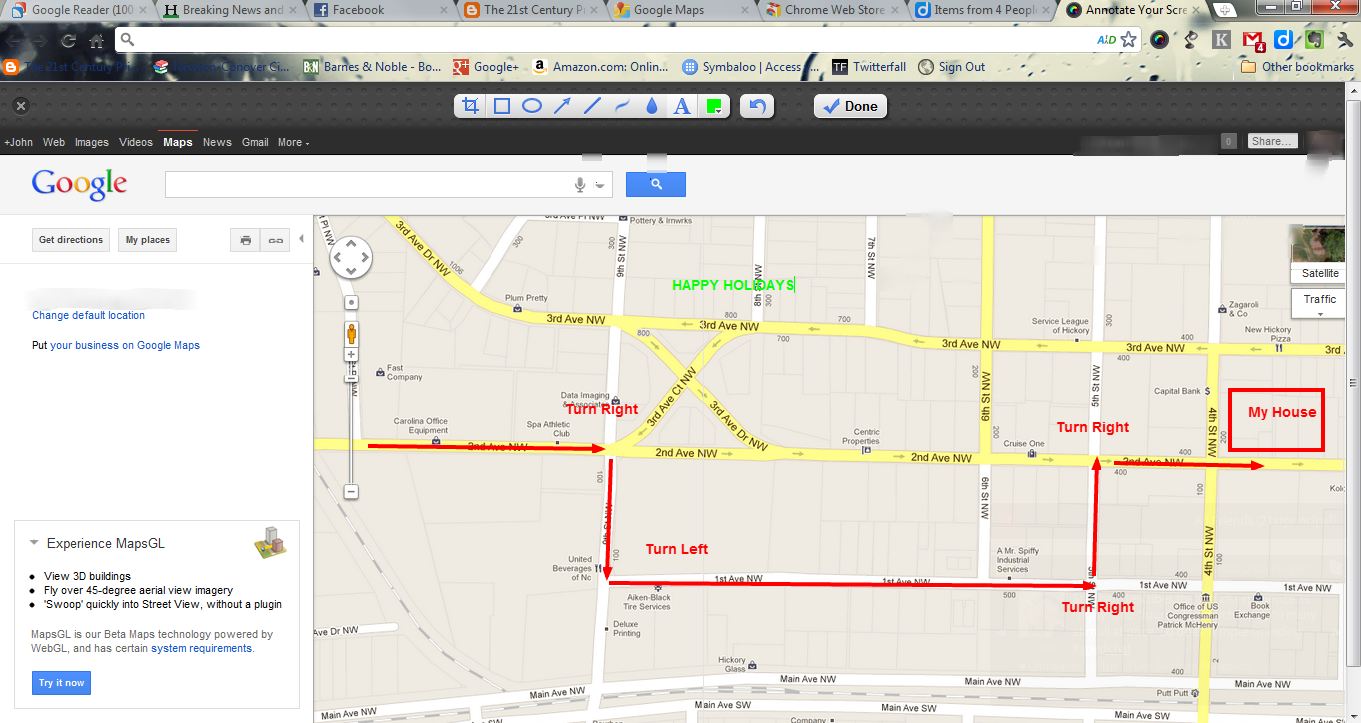
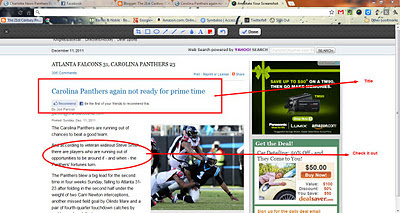
Once you click the browser button, you have three capture choices: capture visible part of the page, capture the selected area, and capture the entire page. Once you select what you wish to capture, it immediately appears in another browser window or tab. From this screen, you can edit, annotate, add arrows, and add shapes. Once you are finished annotating, you can either save the map locally on your computer, save it temporarily on your clipboard, or save it permanently in your Diigo account.

Awesome Screenshot Annotation Screen
Awesome Screenshot is another extremely useful extension for your Web browser. It is available for Firefox and Safari browser users too. 

Monday, December 12, 2011

“Send to Kindle” Extension: Easy Way to Send Web Content to Your Kindle

Yesterday, I posted my favorite Chrome Apps and Extensions, and there was one of those extensions that I just have to mention again, the “Send to Kindle” Extension. I am a converted Kindle user and anything I can employ to increase its functionality, I will use. The “Send to Kindle” Extension is one of those extensions every Kindle user must have.

The “Send to Kindle” Extension basically allows users to read web content on their Kindle devices. For example, suppose I discover a rather long Web article that I would like more time to peruse later. With the “Send to Kindle” extension, I click the browser button, and immediately the article is transformed into a simple form, without the border ads or graphics. I only then need to click the “Send” button, and the article is on its way to my Kindle. It is that easy to use! Tools like this make me think guiltily about the all paper I used to make copies of articles during my research. Just another way to go paper. "Oh the possibilities!"

Send to Kindle Screen

The “Send to Kindle” Extension is a must for those who always have their Kindles close by. Check it out in the Chrome Web Store.

Sunday, December 11, 2011

My 11 Favorite Chrome Browser Apps and Extensions

NOTE: I CAN NO LONGER RECOMMEND EVERNOTE TO USERS. SINCE ITS ACQUISITION IN 2023 BY BENDING SPOONS, THE PRODUCT HAS BECOME RIDDLED WITH BLOATWARE AND NOT USABLE AS IT ONCE WAS. THERE ARE BETTER PRODUCTS AVAILABLE FOR NOTE TAKING.

I have not hid the fact that Chrome is my browser of choice, and from the looks of articles like this one, “Google’s Chrome Browser Surging Past Firefox”, it looks many more are beginning to choose the browser as their favorite. One of the features of Chrome that I like are the extensions and the Apps that can be downloaded and used.
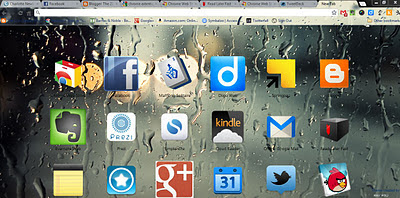
Chrome Apps Page
For those not familiar with Chrome extensions and Chrome apps, the difference between the two is that Chrome Extensions run within the browser window from a button located in the upper right hand corner and a Chrome app is an application that runs in its own browser window, usually accessed through an icon on the apps page within the browser. While Firefox offers its users the same experience, I have grown to appreciate the reliability and functionality of the many apps and extensions within my Chrome browser.

While I have posted my favorite Chrome Extensions and apps before, my list of favorites has changed a bit since then. Here's my latest.

Quick Note: Quick note is another one of those apps that make it possible to be paperless. With Quick Note, users can quickly add and edit notes. Notes that are added are fully searchable, and if you have a Diigo account, you can sync those notes to the cloud. That means you can use Diigo’s Web and sharing capabilities to both access your notes and share them with your Diigo groups. Those developing the app indicate in the Chrome Web Store they may integrate the app with other Web tools like Evernote and Dropbox in the near future. Quick Note is a simple to use note taking tool located right in  your browser.
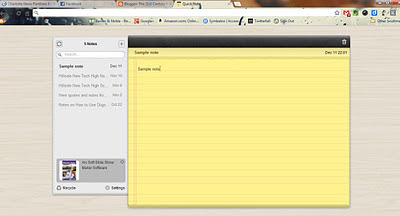
Quick Note
Kindle Cloud Reader: About eight months ago, I became an avid e-book reader. I own two Kindles, and I have the Kindle app on every PC I use and on my iPad. I even have the Kindle app on my Android phone. With the Kindle Cloud Reader, I can access my growing Kindle e-book library even on machines that do not have the Kindle application installed. In addition, the Kindle Cloud Reader has a sleek interface and is so easy to use, there are times when I simply use it to read my books. Currently there are three things I wish I could do in the Kindle Cloud Reader that I can’t do: 1) Highlight text, 2) Enter reading notes, and 3) Access my newsstand items. I can see text I’ve highlighted in other Kindle Apps, but I can’t highlight. Also, there are times a thought occurs to me while reading, and I love being able to attach it to the text. As far as accessing my Newsstand items? I would love to be able to check out my newspaper and magazines from the Kindle Cloud Reader too. Still, reading from the Cloud Reader is a pleasant and easy experience.
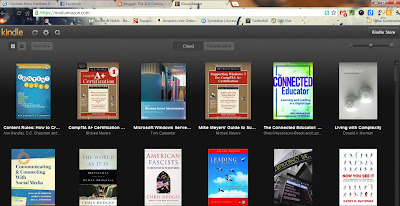
Kindle Cloud Reader
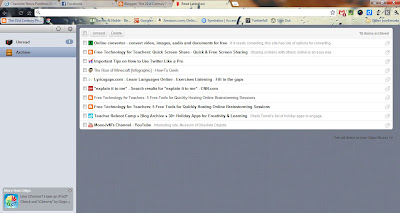
Read Later Fast: I’m just learning about the power of this app. I’m always stumbling across a Web article that I just don’t have time to read. With this app, I can post an article to my Diigo account for future reading. I can even include the graphics. Read Later Fast integrates entirely with my Diigo account and adds another level of flexibility to an already versatile web tool. I can open these Web articles using this app and read according to my schedule.
Read Later Fast
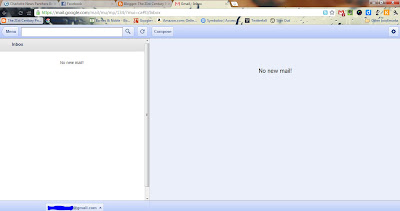
Offline Google Mail: This app basically gives me an interface for my Gmail account and allows me access email offline. You can also compose email which is stored and later synced with the Web. Offline Google Mail is an excellent email client right in your Chrome Browser.
Offline Google Mail
Tweetdeck: Tweetdeck also has a Chrome app as well. This app works pretty much like the separate Tweetdeck app. Twitter recently updated this interface to look exactly like its desktop Tweetdeck app. Twitter users will find this app works as well as the other Tweetdeck products.


Here is a list of my favorite Chrome Extensions.

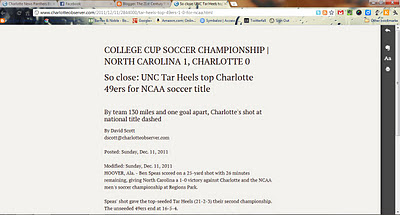
Evernote Clearly: This extension takes a blog post, article or Web page and transforms it into an easy-to-read format and then places it into your Evernote account. That means you can later access these articles with any device running an Evernote app. This is one of the must-have Chrome extensions. I was even able to convert an article to a PDF and send it to my Kindle to read there.
Evernote Clearly Interface
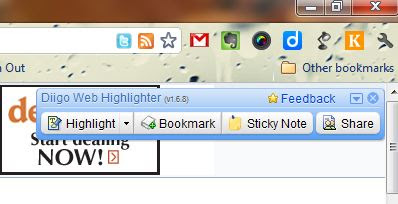
Diigo Toolbar: This extension is one of my most used. I have posted about it before. It allows users to highlight, bookmark, add a sticky note, or share a web page with basically the click of a button. Diigo users will love adding this tool to their browser. An excellent extension that adds even more functionality to your Diigo account.
Diigo Extension Toolbar
Awesome Screenshot: This tool allows users to take snapshots of Web pages and the screen, annotate them, then save them either on the desktop or into your Diigo account. This is a very useful extension for capturing graphics for later sharing. It is also another extension to add functionality to your Diigo account.
Awesome Screenshot
Evernote Web Clipper: There are many times I stumble across a Web page that I might want to share or use later. The Evernote Web Clipper allows users to clip those pages and place them directly into one of their Evernote notebooks. This extension adds functionality to your Evernote account.

Twitter Share This Page: There are quite a few times I find a Web article that I just have to Tweet out. This extension puts a button in my Chrome browser that allows me to do just that. When I find a page to share with my PLN, I can click on this button, edit the outgoing message and just Tweet it out. URL’s are automatically shortened too. Must have extension for Twitter users who use the Chrome browser.

Send to Kindle: This extension allows users to send any Web content they find to their Kindle for later reading. For example, suppose you stumble on an article of length that you would like to spend some time reading later. You can use the Send to Kindle extension to put it on your Kindle.

As more and more Chrome apps and extensions become available, my favorite list grows. Chrome apps and extensions are ways to get the most out of both the browser and your favorite Web tools.
Wednesday, December 7, 2011

Administrators Can Be Paperless Too: 7 Tools to Make It Happen

NOTE: I CAN NO LONGER RECOMMEND EVERNOTE TO USERS. SINCE ITS ACQUISITION IN 2023 BY BENDING SPOONS, THE PRODUCT HAS BECOME RIDDLED WITH BLOATWARE AND NOT USABLE AS IT ONCE WAS. THERE ARE BETTER PRODUCTS AVAILABLE FOR NOTE TAKING.

I have read a great deal on the web about teachers making their classrooms paperless, which brings the following question to mind: "Why can’t school administration become paperless too?" How many times in the course of my job do I use paper in the line of duty? Is it necessary to have physical copies of everything I do as a school principal? The answer to that last question is a 99% no of course. The 1% are usually district level documents that someone is just not quite comfortable yet with having a cyber-copy only. In reality it is possible to eliminate much of the paper used during the course of carrying out administrator duties, and to do so with inexpensive tools.  Here’s my suggested list of tools to make the role of principal or school administrator paperless too.
  • Google Docs: Google Docs’ sharing feature makes the act of copying and distributing a document of any kind, whether wordprocessing, spreadsheet, or presentation, just plain sinful. For example, if you want to provide your faculty with agenda, why not share a a Google Document version of it with them? Then, just send them an email invite. Or, if you want them to have a copy of a professional development presentation, send them an email invite to it as well. There’s little need to provide staff with copies of documents any more. Of course, the administrator has to be willing to allow staff to use their technology during meetings, but what 21st century school leader is going to ban staff or meeting participants from using technology? Might as well have your meetings in the dark.

  • Email: Of course email is considered just a bit passé by many, but there is no better tool that allows you to put directions and information in writing to your staff. For example, if you need to get procedures to your staff regarding an up-coming open house, send it to them by email. If you need to get a parent message to a teacher, send it by email too. The amazing but simple thing about email is you have a written record of what you sent so there can be no dispute about what was said. But what about the teacher who does not read his email regularly? Sorry, but he wouldn’t survive in my school, and probably not in my district. Perhaps he needs to find a job in the jungle somewhere, away from the 21st century world of technology.
  • Dropbox: Dropbox is another one of those tools that can make school administration paperless. While sharing single documents through Google Docs works well, occasionally there are multiple, lengthy documents or media that I want to share more efficiently. With Dropbox, I can place all those items in a folder and share that folder with whichever staff members need access. For example, I created an accreditation folder in Dropbox that contained all of the data and documents the accreditation team needed and invited them to share that folder. There was no need to make piles of copies of data and documents and place them in folders or notebooks. They had access to everything electronically. Dropbox makes making copies of any major documents an anachronism.

  • Evernote: I don’t even have a yellow legal pad in my possession any more. Evernote’s abilities to give the user a platform to take notes makes tablets (not the electronic kind) a total waste of money. For example, while sitting in a meeting, I can take notes on those proceedings. The features that make Evernote most useful for this are: 1) instant access on any of my technological devices and 2) ability to share the resulting document with anyone else. Evernote has apps for the desktop, smartphones, and all tablets, so getting to your notes is even quicker than digging them out of your briefcase. Being able to share those notes with others either through social media or through email means no trips to the copier when you want to share them. Evernote is the most versatile piece of software in a battle against using paper for adminstrative purposes.

  • Diigo: I only recently began using Diigo more in my role as administrator. I have always shared resources and interesting ideas with staff, but often it was done through either a handout or by email. Email will keep you paperless, but when it comes to sharing links to web resources, Diigo does so much better. I have set up Diigo groups geared to specific staff members and invited them to join. Now, I can post links to Web resources to those groups and because Diigo sends emails when those have been updated, my staff gets updates rather quickly. Diigo is an excellent way to share resources quickly and easily with staff members and even parents.

  • Skype or Google Talk:  Because our entire staff has Skype accounts and is logged in immediately in the mornings, Skype has become an excellent way to share out information even more quickly. For example, if I need to announce a procedural change for an event later in the day, I can get that out instantaneously by sending it out by Skype. Staff can just as quickly ask for clarification too. Google Talk functions in the same manner of course, except it messages individuals rather than groups. Both these tools take away the need to write short notes or memos. These are more tools to keep me away from the copier or from reaching for the notepad.
  • Blogger (Or Other Blog Platform): Having a school newsletter on paper is another anachronistic habit. There are so many ways to create and distribute information in a newsletter-format, it makes no sense to print them any more. Blogging, however, is one of the easiest ways to provide newsletter-like information to staff or parents. A blog gives administrators the ability to share school news with constituent groups quickly and easily, and students can’t lose them on the way home to school. Blogs also allow for the delivery of multimedia content too. That’s something you can’t deliver through a paper copy.
Of course there are other tools out there that could contribute to making the job of school administrator as paperless as possible. These are just some of my personal, most-used tools. If we want to encourage our teachers to become paperless and use the copier less, then as school leaders we need to take the lead and engage in becoming paperless too.

The 21st Principal: 2011 Edublog Best Administrator Blog Nomination Thank You


nominee badge

Nominations for the 2011 Edublog Awards are in, and I feel honored that this blog, The 21st Century Principal is among the nominees for Best Administrator Blog.


When I began this blog almost exactly 2 years ago, I was a bit strong on ambition and perhaps a bit weak on just how far I was going to go with blogging. It has been an amazing ride for the past couple of years with all the new connections I've made through both this blog and through Twitter, Facebook and Google+. Blogging has been such an excellent way for this administrator to plug into the global conversation about education, teaching, and technology. I am convinced of its value to me professionally, and I think I am a better educator because of it.

Thanks again for the nomination. I am truly honored to be included in the company of the most connected administrators in the world.