Showing posts with label Chrome. Show all posts

Saturday, February 1, 2014

Using Your Kindle Tablet App and Chrome 'Send to Kindle' Extension to Read Web Articles

There is not a single day that goes by that I don't use my Kindle apps on my iPads. I have indicated many times before that I am a converted e-book reader, and I can honestly say that I rarely purchase a book now in any other format. In fact, for the first time in my life, whether or not there is an e-book version determines whether I purchase the book or not. There are several titles on Amazon's website that I have yet to purchase simply because there is no e-book version.

While being an e-book reader enthusiast means I am a heavy Kindle App user, I have also found some other features of this app very useful as I work on my doctoral degree. As many who have entered graduate degree programs might know, once you enter this level of graduate degree work, the mountains of reading required grow exponentially. Having a Kindle means I don't have to lug around stacks of books or articles to read. Amazon and the Kindle app gives us doctoral students some options that make the reading even easier.

One of these options are Chrome extensions that make getting web articles to your Kindle or in your Kindle app almost as easy as clicking on a button. Two of my favorite extensions that work essentially the same are "Send to Kindle for Google Chrome" and "Send to Kindle" by Klip Me. Here's how they work.

1. You find an web article you wish to have access in you Kindle document library. Click on the "Send to Kindle" extension button on your Chrome toolbar.

2. A drop down menu appears that gives you three options. One is to Send to Kindle, one is to Preview and Send to Kindle, and a third option allows you send text you selected beforehand. Select the task you desire. I often select "preview and send" in order to see the format before its sent.

Send to Kind Chrome Extension Screenshot


3. Once you have selected preview and send, you web article appears without all the ads and other distracting content. Click the send button and the article is on its way to your Kindle app.

4. Open your Kindle app on your handheld device. Go to your documents library and simply download the article from the cloud to your device. Open the document and read. The beauty of opening the web article in your Kindle app is that now you can highlight and make notes to the document right on your device.

Web Article Opened in Kindle App

Having an Kindle account and using both the Kindle App, Chrome Send to Kindle extension makes it quite easy to send those graduate school articles to you handheld device so that you can read them anywhere and still not have a stack of articles to carry around.

Wednesday, June 19, 2013

Make Your Chrome TweetDeck App Operate as a Windows Desktop App

I am a heavy Chrome browser user. It's not usual for me to operate with multiple tabs open throughout the day. I might have one open to my Blog, another in Facebook, another in my Gmail, and so on. When the version of TweetDeck you're using is the Chrome Browser App, it also normally operates within a Chrome tab. You have to click on a TweetDeck Chrome tab to view the program. It is possible though, to change how the Chrome TweetDeck app behaves so that it functions more like a separate Windows application.

Of course you could install the Desktop version of TweetDeck and solve this problem. But I have noticed lately, that Twitter seems to update the Web or Chrome version first when there are new features. This means some of TweetDeck's newest features are available in the Chrome App way before the Desktop app. For example, right now, in the Chrome Browser app, the TweetDeck columns have handles and you can simply click on and drag your those columns into any order you wish. I'm sure this will be available at some point in the desktop version, but for now, it is only available in the Chrome app version.

If you would like to have your Chrome TweetDeck app behave more like a separate Windows application, here's how you do that, and you can create a shortcut to your desktop, start menu, or taskbar in the process.


Four Easy Steps to Get Chrome TweetDeck App to Behave Like a Windows App

1. Open your TweetDeck  App in your Chrome browser and it will appear as a tab below like the illustration below. This is how TweetDeck in Chrome normally operates, as a tab all to its own.

Chrome Tweetdeck Tab View

2. After TweetDeck Chrome loads, go to your Chrome Settings button in the top right-hand corner. When you click on the settings button, your drop-down menu appears like below.

Chrome Browser Settings Menu

3. Select "Tools" from the Menu. Then, select “Create Application Shortcuts.”  A dialogue box will appear like the one below. You can choose to pin the Application Shortcut to your Desktop, Start Menu, or Taskbar. Once you select the way you want he shortcut to appear, simply click the "Create" button. Your icon will appear as you have selected, and TweetDeck will open in its own window instead of a tab.

Chrome Application Shortcut Dialogue Box

4. Your Chrome TweetDeck app now operates from a separate window, just like the desktop app. Just click on the icon you created to access your Chrome TweetDeck app from now on.

Chrome Tweetdeck Running 

This Chrome trick makes your TweetDeck Chrome App operate as its own application.

Wednesday, December 14, 2011

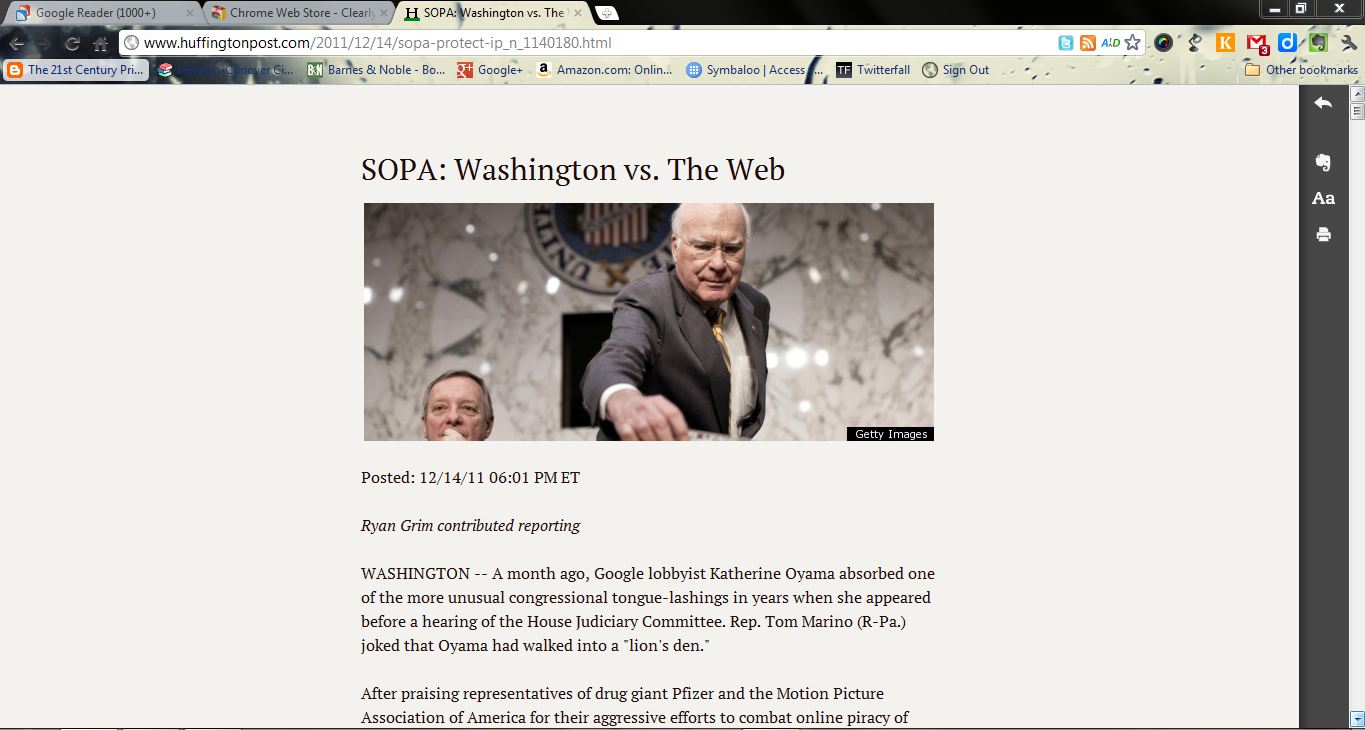
Clearly from Evernote: Collect Web Content for Your Evernote Notebooks

NOTE: I CAN NO LONGER RECOMMEND EVERNOTE TO USERS. SINCE ITS ACQUISITION IN 2023 BY BENDING SPOONS, THE PRODUCT HAS BECOME RIDDLED WITH BLOATWARE AND NOT USABLE AS IT ONCE WAS. THERE ARE BETTER PRODUCTS AVAILABLE FOR NOTE TAKING.

Clearly from Evernote is yet another one of those quite useful Chrome browser extensions, especially for those who have an Evernote account.
One click of the button and a Web article is transformed into a simplified and uncluttered read. Four basic functions make this browser extension and addition to the must-have list for your Chrome browser.
  • The basic function of Clearly is to transform blog posts and Web articles into a format that is easy and clean to read.
  • By connecting Clearly to your Evernote account, you can make that Web content available on any device either connected to the Web or that has the Evernote application installed.
  • Tag articles sent to your Evernote account so that they are easily accessed and retrieved.
  • Change the theme  and the font size to make the article or Web page more readable.
Clearly Interface
Evernote users who want to capture Web content without all the distractions and make it available in all their devices, will love Clearly. For more information, check out the Chrome Web Store.

Monday, December 12, 2011

“Send to Kindle” Extension: Easy Way to Send Web Content to Your Kindle

Yesterday, I posted my favorite Chrome Apps and Extensions, and there was one of those extensions that I just have to mention again, the “Send to Kindle” Extension. I am a converted Kindle user and anything I can employ to increase its functionality, I will use. The “Send to Kindle” Extension is one of those extensions every Kindle user must have.

The “Send to Kindle” Extension basically allows users to read web content on their Kindle devices. For example, suppose I discover a rather long Web article that I would like more time to peruse later. With the “Send to Kindle” extension, I click the browser button, and immediately the article is transformed into a simple form, without the border ads or graphics. I only then need to click the “Send” button, and the article is on its way to my Kindle. It is that easy to use! Tools like this make me think guiltily about the all paper I used to make copies of articles during my research. Just another way to go paper. "Oh the possibilities!"

Send to Kindle Screen

The “Send to Kindle” Extension is a must for those who always have their Kindles close by. Check it out in the Chrome Web Store.