Showing posts with label Evernote. Show all posts

Wednesday, April 15, 2026

Lessons Learned: Preventing Companies from Keeping Your Users and Institution as a Locked-In User

Since my decision to discontinue my use of Evernote after Bending Spoons eliminated the plan for Personal Users, I have found my replacement: the Notes app within my Mac OS system.

The Mac OS Notes app successfully captures what I wanted to do with my note taking activities and other tasks I was doing with Evernote. It turns out, with some modifications, I can do all that I was doing with Evernote.

For example, while the Notes App does not have “notebooks” it turns out that its “Folders” feature functions in the same manner. You can gather connected documents into a folder and tag the folder. You can scan documents; insert documents; insert audio recordings, etc.

Basically, Notes appears very much like Evernote used to be before Bending Spoons acquired it and began adding Bloatware to it in order to charge customers more.

I suppose Bending Spoons did me a favor. I was really paying to use Evernote when I did not need it. The simple solution was right there all the time.

Sometimes the solution to our problems is already there, and sometimes, when it comes to tech solutions, it’s not the product expanded with bloated features; it’s the simple solution.

Sometimes the “Keep It Simple” adage is best, and app solution developers would do well to keep that in mind when the adding of features does not always equate to value for your current users. Keep your current users in mind and don’t add features that degrade their experience of your product. That is, if you have any loyalty to your current customers.

Keep adding bloated features that pull your product away from what your legacy and original users want, then expect those users to exit when the costs are too high and your product can be superseded by a solution that captures what they want to do.

On the flip side of things, all users would do well to prevent themselves from getting “locked-in” with apps and tech products. Keep yourself flexible and portable so you can relocate at any point the app developer stops providing the product you want and need.

Figure out a way to transfer those app escape costs back to the app developer where they belong. 

After all, they are trying to engineer their products to keep you “locked in” as a user. With some anti-lock in measures, you can keep that from happening.

Sunday, April 12, 2026

Why Evernote Note Taking App Users Need to Cancel and Delete Their Accounts Now

There are is an important reason why anyone who has a Personal Evernote Note Taking App account should delete their account and find an alternative now.

Bending Spoons, who acquired Evernote in 2023, has recently changed their plan offerings for personal users and both are unacceptable. 

There is the “Starter Plan” that imposes draconian limits on content and device use. This is a problem for someone who has been using Evernote more than 10 years, who can’t use this plan without severely deleting content. It also eliminates one of the major reasons I use the application, which is the ability to use across all the devices I want. This plan limits you to 3 devices. 

The other plan offering, the “Advanced Plan”, is basically what I have now, with unlimited content and devices, but it is over 100 dollars more per year. I'm sorry, but I do not see Evernote's value increasing that much in one year.

Now, I acknowledge that when you go in and start to cancel your subscription=, Bending Spoons offers you a one-time, $100 off subscription which brings it back to $149, but that alone should be a red flag. Why should they offer only two plans, and then offer a one-time discount? Do they want to keep me hooked for one more year to get me further locked in as a user? That’s dishonest business in my thinking, but typical of Silicon Valley and Big Tech.

Why would I spend another year, uploading more content to Evernote, only to find myself in the same situation next year? I would have even more content. Perhaps Bending Spoons is gambling that I would take the additional year, and because I have even more content, I would be so invested that I would be forced to continue using Evernote. Not happening with this user.

Another reason to move on from Evernote is that they are apparently using the “Microsoft Product Design Playbook.” That playbook is “Add a bunch of features to Evernote so you can ultimately charge more because users are locked in as users, they won’t go anywhere.” This notion includes adding a gazillon features that users haven’t even asked for or wanted. Then charge your users more. Microsoft has so bloated Windows with “features” I left their product behind a long time ago, and I am doing the same with Bending Spoons’ Evernote.

I have exported all my content. I have cancelled my subscription. I will delete my account and move on. Bending Spoons could have continued the Personal Plan option, but they gambled and lost with me.

One thing Bending Spoons should learn, just like Microsoft, you can’t treat customers crappy. And, don’t always think that all the added features like AI and Video transcripting is what all your customers want and will pay for. Not all users want new bells and whistles, especially long-time users who found your product versatile and reliable, who now have been dumped on by the company.

Evernote has been deformed beyond use for me by Bending Spoons, and even though they brag on their website that they “Acquire and improve iconic products” they certainly failed in this case. Time to move on and find another solution. 

Saturday, April 11, 2026

Evernote Is History with Me: They Have Lived up to Doctorow's Notion and Have Become Enshitified

The Enshitification of Evernote has come to pass.

I have used Evernote over 10 years, and they have tweaked it well sometimes, and sometimes not so well, but I have used it for years to store my reading and writing notes.


That, unfortunately, ends today.


Evernote changed their plans and recently increased their yearly subscription price by 50% if you keep what you have, or otherwise, choose a crappy plan with draconian limits  placed on your amount of notes, notebooks, and devices to access their product. ENSHITIFICATION AT ITS BEST.


I suppose they have to pay for their AI gamble, which I never used anyway.


Cory Doctorow really got it when he coined this term. The only way out is to delete my account.


What's worse, I put in a ticket to question their plans and increases, and EVERNOTE JUST SENT ME AN EMAIL GIVING ME INSTRUCTIONS ON HOW TO EXPORT MY CONTENT AND CANCEL MY SUBSCRIPTION.


After I do that, I'm out. Evernote is history with me.


UPDATE: After I posted, I downloaded all my content from Evernote. Then I logged into my account to cancel my over 10 year subscription.


Once I clicked the Cancel button, a pop-up comes up “Offering my current options for $149 per year” and not the $249 per year increase. That is Doctorow’s “enshitification” personified!


The email Evernote sent me DECEPTIVELY offered two option: 1) Starter Option (with draconian content and use limits) for $129 per year and 2) Advanced Option for $249 per year that kept all my current features.


That’s poor and unethical business practices in my thinking. 


I cancelled my long time subscription anyway. Who knows how Evernote will treat its users next year now that they have become enshitified!


On an added bit of irony, Bending Spoons, the company that now owns Evernote boasts on its website: “We acquire and improve iconic products.” Perhaps that would better read: “We acquire and enshitify iconic products.”


Saturday, July 16, 2016

Evernote Raises Prices & Degrades Service for Basic Users: Is It Worth It for Education Users?

Evernote is increasing its pricing for Premium users and Plus users while degrading service to those who have chosen to use the service's Basic option. I have been an Evernote user and a premium user since May of 2010, and I have often blogged about its capabilities as note taking software. I have also led staff and professional development about the product. I still use it every day, both personally and professionally. Still, I hope Evernote knows what it is doing.

In a blog post (see "Changes to Evernote's Pricing Plans") the company claims that it "doesn't take change to our pricing model lightly, and we never take you for granted."

I certainly hope so. I certainly understand that companies like Evernote need to raise revenue for improvements, but this personally places me at a price point where I begin to ask the question, "Is the yearly subscription price worth it?"  It's not like there aren't other less expensive options out there. For example, I've used and still use Microsoft's OneNote, and I could so easily switch to it and accomplish what I want with that software, or even find some other alternative, but I have loyalty to Evernote as a great product, but changes in prices and functionality weaken my loyalty as a long-time user.

At this point, I will wait and see what Evernote does with the added revenue, but I do have these words of caution for Evernote. I am not a business user, so I do not really care to see improvements that make the product better for corporate America, unless these also improve my own functionality. To assume that those business improvements to Evernote software make it a better product for my job as an educator and education scholar is a mistake. Often companies forget core users in their efforts to capture new markets. I hope this isn't what Evernote is doing.

As an educator, I chose Evernote in 2010 because it was a great note-taking platform that was inexpensive, versatile, and accessible across devices. At that time, it didn't pretend to do something else. It was reliable. It did exactly what I wanted it for. But this is important: Improvements of a product aren't always improvements to all users.

If Evernote is making these changes in pricing and packaging to go after business users, there is the danger that they are forgetting us, the education users and everyday users who have been passionately loyal, like in my case, for 6 years.

I am not at the point of cancelling my Evernote account yet, but I want that company to know that I will be watching out for those "improvements." If I am going to be paying more for Evernote, then you can bet my expectations for your product have gone up as well. Your claim that you aren't "taking me for granted" will only prove true over time.

Tuesday, February 17, 2015

Evernote's Scannable: A Powerful But Simple-to-Use Scanning App for Your iPhone or iPad

UPDATE: EVERNOTE IS NO LONGER AN ACCEPTABLE OPTION FOR ME. IT IS HAS MORPHED INTO A COMPANY THAT NO LONGER PUTS USERS FIRST.


Evernote just got even more useful for me with its new iOS app Scannable.
In many of my past posts regarding Evernote, I have made it clear that the Evernote note taking application is my everyday "go-to" app in both my professional and personal life. With all the smartphone apps, desktops apps, and browser extensions, Evernote makes note taking and web curation simple and easy.

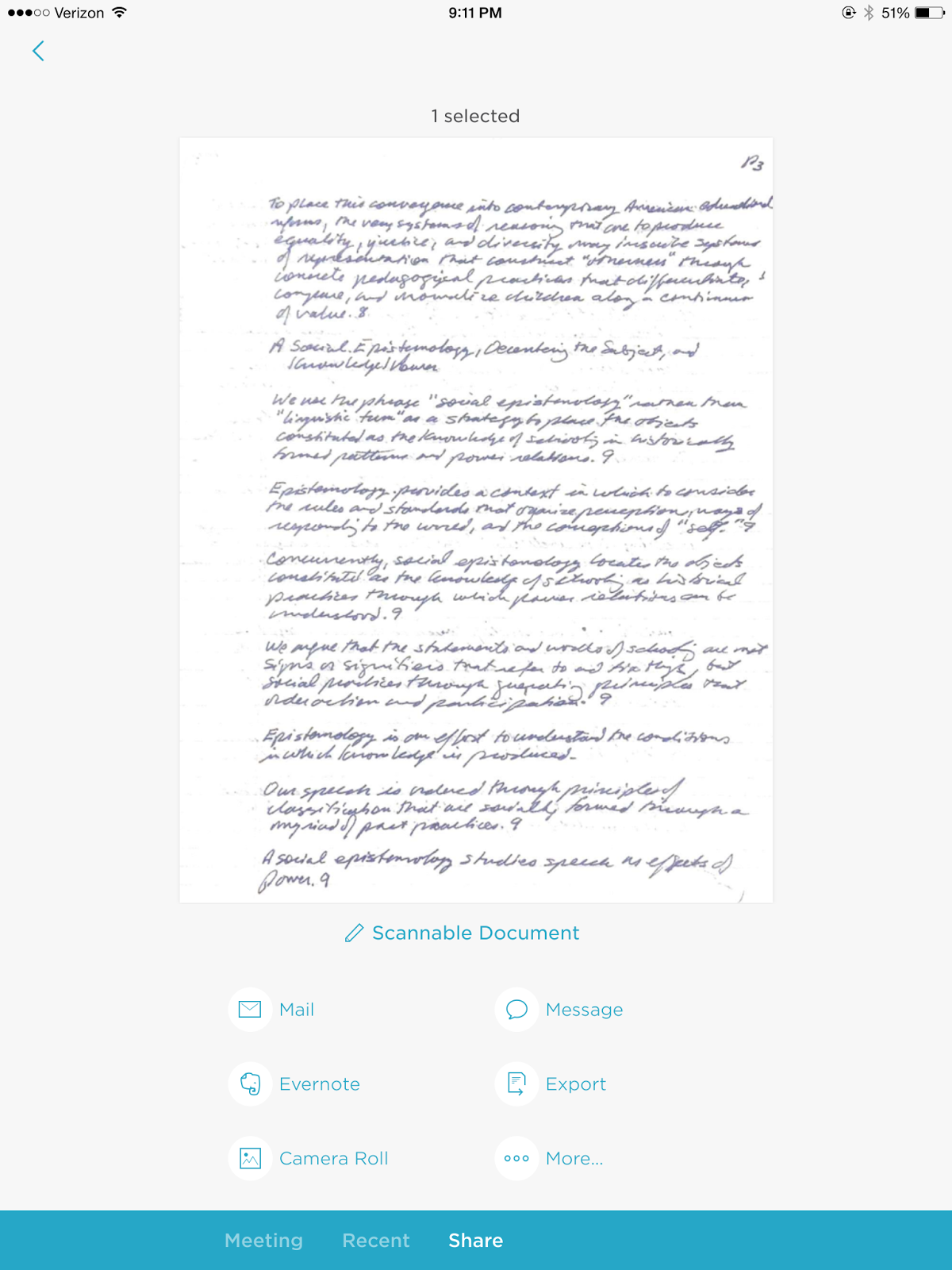
Now, they've added an iOS app called Scannable. With this app, you can scan any document with your iPad or iPhone. You can then send it to someone by email, upload it to an Evernote notebook, place it in your photos, send it through the messaging app, or export it any number of your iCloud apps. It's rather simple interface is an added benefit.

Evernote's Scannable is definitely another one of those apps you'll want to download and use with your iOS devices.

Scannable Document in Evernote Desktop App


Scannable Interface in iOS

Scannable is excellent choice for quickly capturing any document, whether it be a handwritten note, receipt, memo, or sticky note. 

Saturday, May 17, 2014

New Evernote Feature: Turn Your Notes into a Presentation

EVERNOTE IS NOT LONGER A VIABLE OPTION FOR ME. I NO LONGER RECOMMEND THIS PRODUCT.

Evernote just added an interesting feature to its Windows Desktop App: It’s called Presentation Mode.
 In my experience, there are times when PowerPoint or Keynote is just too formal or I just don't have the time to create a presentation. When creating a presentation, you have to take time to translate your content into a format that fits bullets and slides, and there are simply times this just isn't practical or possible. Besides, what if I have notes from a Principals meeting I attended that I want to share? Or maybe I have critical notes from a professional development session that needs to be shared with staff? With presentation software, you have to move that content into an entirely different format, and there are times when a Keynote or PowerPoint presentation is just too formal.

With Evernote’s new feature, Presentation Mode, you can simply, with a click of a button, turn your notes into a presentation. You simply scroll down through your notes as you review them or allow others to read them. You can present in either day or night modes depending upon your lighting conditions. It is an excellent feature of the new Evernote Windows Desktop application, but it is only available to those who have a premium account.

image
Evernote Presentation Mode in Action: Screenshot

Saturday, March 29, 2014

Fixing a Bothersome Evernote Sync Error

EVERNOTE IS NO LONGER A ACCEPTABLE OPTION FOR ME. IN 2026 THEY HAVE MADE THEIR PRODUCT TOTALLY UNACCEPTABLE AND UNUSABLE YET EXPENSIVE.

Have you been receiving the message “Sync failed due to error on client side” when your desktop Evernote application fails to sync?
 While it does not stop the other files from syncing, receiving message over time is annoying. It is most likely due to one note that is causing a conflict with the desktop and web versions of the software. The fix is relatively easy, though I discovered after uninstalling and re-installing the Evernote desktop client.

1. First locate the note that is causing the sync failure. You can’t do this directly, but you can indirectly. If you click on the “Activity” button at the top of the Evernote desktop application, a list of recent activity appears. Look for “sync errors” in that list. It will indicate which note has had a sync error.

2. Export the note to your desktop by using the “Export” feature under “File.” Be sure to export the note as a ENEX file.

3. Once export has been done, delete the note with the sync error from the Evernote notebook. Sync your Evernote desktop app by clicking on the “Sync button.

4. Import the deleted note back into your Evernote desktop application by selecting the import function under file. Re-sync your account and all should work.

evernotedesktop
Evernote Desktop Interface

Friday, January 31, 2014

6 Reasons for Using Evernote as Your To-Do List Application

EVERNOTE IS NO LONGER AN ACCEPTABLE OPTION FOR ME. BENDING SPOONS ACQUIRED IT IN 2023 AND HAVE DEFORMED THIS PRODUCT AND ITS COSTS TO THE POINT THAT I WOULD NOT LONGER RECOMMEND IT.


Still looking for a good way to keep track of all those administrative tasks? I've tried several to-do apps but Evernote's versatility and features make it an excellent choice to keep up with your daily, or in my case, weekly task lists. I have a notebook in Evernote dedicated to keeping my weekly tasklists in one place. Every Monday morning, I open and start a brand new list. Using the Evernote's check-box feature, I create a box and enter each item. I check off items as the week progresses, and I add new ones as I stumble across them. As often happens in the life of a school administrator, I have a few items left over at the end of the week. I just copy and past them into the next week's Task List. There are several great reasons for using Evernote as your "To-Do List App."
  • You can create task lists very easily.
  • Once created, you can access your task list across devices and on the web. Your task list follows you around like a shadow.
  • You can create a notebook where you store all your task lists for back reference if needed.
  • Use the "Tag" feature to make your task lists fully searchable.
  • Upload any files such as Word Docs, PDFs or photos right into the task list. That means you don't have to search elsewhere for the files needed for the task.
  • Create a shared task list and share it with your assistance principals. That way you can tackle the tasks as a team.
Evernote's versatility make it my "To-Do List App" of choice. 

Evernote Task List
Get Evernote by visiting their web site. https://evernote.com/


Sunday, December 29, 2013

6 Must-Have Evernote iPad Apps and Chrome Extensions for Educators and School Leaders

AS OF 2026 I NO LONGER CAN RECOMMEND EVERNOTE. THE COMPANY THAT ACQUIRED IT IN 2023, BENDING SPOONS, HAS DEFORMED THE PRODUCT BEYOND ANY RECOMMENDED USES I WOULD MAKE. THEY HAVE ALSO SHUT THE PERSONAL USER OUT. THERE ARE MANY OTHER PRODUCTS THAT ARE MORE ACCEPTABLE.


Evernote, as I've posted many times, is such a versatile application that every educator is bound to find it useful.
Besides the fact that you can access the application across devices, there are some additional extensions and tablet apps that make it even more useful and versatile for the school leader and classroom teacher. Check out each of these tablet apps and Chrome extensions to extend the usefulness of the application even further.

iOS and Tablet Apps

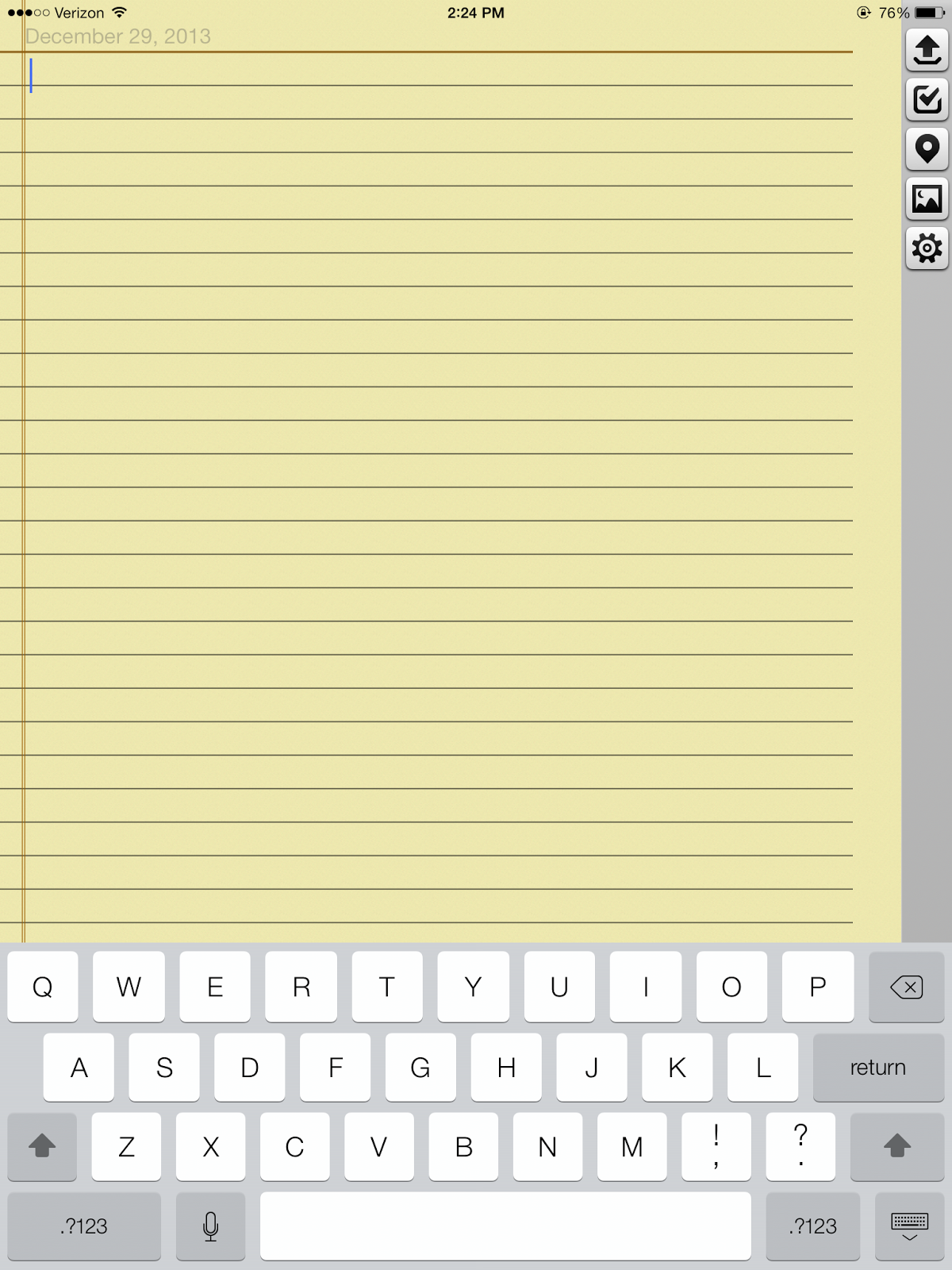
vJournal: vJournal is a simple, free iOS app that allows your to create dated journal entries that are then uploaded to an Evernote notebook called "My Journal." It is extremely simple to use. Each entry is automatically dated. When you are finished typing an entry, simply click the upload button. You can also insert photos in your entries as well, which means vJournal also gives you the ability to create a photo journal. From the perspective of a school leader, vJournal is an excellent app for keeping various log entries and observational data. Check out vJournal in the iTunes store here.

vJournal Interface
Penultimate: Penultimate is a free handwritten note-taking app for the iOS device. There are times when all you need is a place to jot info and, if you're like me, you don't even carry a pen or paper any more. Penultimate is a handwriting app for the iPad that syncs to your Evernote account. You can also insert photos from your Camera Roll or take a picture and insert it into your handwritten notes. Penultimate's features add even more functionality to Evernote. Check out Penultimate here on the Evernote Penultimate Web Site.

Penultimate Interface
Skitch: Skitch is a graphics app for the iOS or Android device that allows users to communicate graphically. You can take a photo and use graphical tools to mark that photo up and then send it to others. For the school leader or educator, it is excellent way to make communication more visual. Skitch is also available for download to a Windows PC. For more information about Skitch, check out the Skitch Evernote Web Page here.

Skitch Interface
Boxer: Boxer is an email app for the tablet that offers users a whole range of features.  The one feature that is of interest to Evernote users is that it allows you to send email messages to whichever Evernote notebook you select. This integrates your email into your Evernote application, adding still another function to your Evernote capabilities. Check out Boxer for email in the iTunes store here.

Boxer Interface

Chrome Extensions

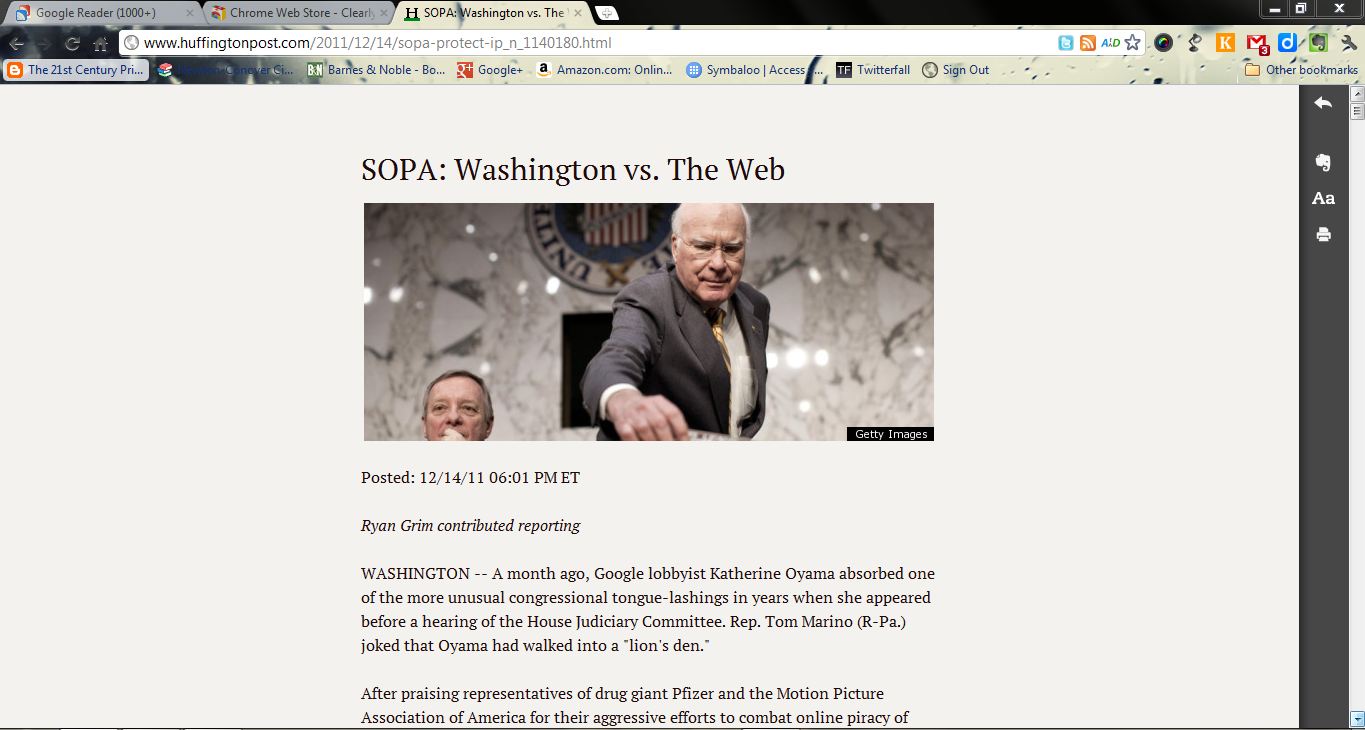
Clearly: This Chrome extension has so many features for a free extension. With a single click, users can make blog posts and web articles clean and easy to read. Clearly removes all the superfluous content such as ads and sidebar content. Users can read articles easily. Using the "Text-to-Speech" feature, users can have that article read to them too. Articles can be highlighted and then uploaded to either a default Evernote notebook or one chosen by the user. For more information regarding Clearly,  check it out in the Chrome Web Store here. Clearly is also available for Firefox and available for Opera users too.

Clearly Interface
Evernote Web Clipper: This Chrome extension also gives users many, many more features that expand Evernote's functionality. Users of this extension can choose how they want the Web content to be "clipped" and saved. They can save it into the Evernote notebook of choice as an article, simplified article, full page, bookmark, or screenshot. Users can also highlight text, insert arrows,  and type text notes. Users can also share the Web article through Facebook, Twitter, LinkedIn, or email. This Chrome extension is just another powerful way to extend your use of Evernote. Check out the Evernote Web Clipper in the Chrome Store here.

Chrome Evernote Web Clipper

Evernote by itself is certainly useful, but as the tablet apps multiply and the capabilities of Web browser extensions expand, its usefulness only gets better. Evernote proves time and again that technology is only as good as the software we use, and the software is only as good as its functionality.

Wednesday, November 27, 2013

LiveMinutes: Add Real-Time Collaboration to Your Evernote Account

With a new Evernote extension called LiveMinutes, users of the popular notetaking app can now collaborate with others in real-time on notes. Of course, you've always been able to share notes with others, but this process can end up with conflicting versions of the notes. With LiveMinutes, users can work on notes simultaneously. They can also participate in conference calls, create notes, and exchange and annotate documents all within the Evernote environment. With LiveMinutes, users can turn their Evernote app into a real-time, collaborative environment for just about any project. For more information, here's a video from the makers of LiveMinutes.


LiveMinutes currently offers a free plan and a premium plan for $5 a month. Check out their web site for more information. LiveMinutes Web Site

Thursday, September 5, 2013

Evernote 5: New Windows Desktop Evernote Adds More Features

AS OF 2023 I NO LONGER RECOMMEND EVERNOTE FOR ANY USERS. THE COMPANY THAT NOW OWNS THE PRODUCT, BENDING SPOONS, HAS DEFORMED THE PRODUCT BEYOND ANY USE FOR PERSONAL USERS. THERE ARE MUCH BETTER OPTIONS AVAILABLE.

Evernote, version 5, now has a sleeker interface for the Windows desktop version.
The navigation panes to the left are similar enough to the previous versions. I am just beginning to explore its new features, but here's some great features I've already discovered that add a even more functionality to Evernote.
  • When you access a note in a notebook, Evernote now displays "Related Notes" at the bottom of the Notes Pane, suggesting other notes that might be connected to the one you are accessing.
  • New Shortcuts Feature allows users to drag notes, notebooks and tags to a location in order to allow quick access.
  • Window users can now attach "Reminders" to notes as they could in the Mac and iOS versions of Evernote.
  • Better organization so users can more easily access to notes and notebook.
  • Users can use Smarter Searching for an improved searching experience for their notes.
  • Users can now use a "Card View" feature that allows for easier scanning of note content.
  • Evernote offers a redesigned note editor panel and the ability to pop a note out of the pane to work on a single note.
New Windows Evenote 5 Interface

Evernote's attention to the note taking and providing users with software with lots of features continues. For more information on these features, and to download Evernote 5, check out their blog, http://blog.evernote.com/blog/2013/09/04/evernote-5-for-windows-is-here/

Friday, June 21, 2013

Top 5 Blog Posts of the Week on The 21st Century Principal

What is everyone reading this week? Here’s the most often visited blog posts on the 21st Century Principal this week.

1. “Evernote Journal App for the iPad: Excellent Way to Take Meeting Notes and Keep Logs” Review of a free app for your iPad that allows you to take journal-like notes and sync them to your Evernote account.

2. “Establishing a Culture of Creativity by Paying Attention to Failure” We spend a great of time paying attention to success and winning. Perhaps we need to spend some time in our schools looking at the language we use to talk about failure if we truly want schools with creative cultures.

3. “Why Wouldn’t We Let Students Blog? Reasons to Get Students Blogging” Why would we keep students from blogging? It is the English teacher’s dream. Blogs are the avenue to authentic audiences and authentic writing.

4. “Data-Driven Decision Making Usually Means ‘Test-Score Driven Decision Making” When policymakers use the term “Date-Driven Decision Making,” let’s face it. They mean “Test-Score Driven Decision Making. But if we use just test scores to guide what we do in schools, we ignore much of the most important data.

5. “5 Free Summer Professional Development Resources from ASCD” Complements of ASCD, here’s some great summer professional development resources you can access online. Best of all? They’re free!

Thanks everyone for reading!

Monday, June 17, 2013

Evernote Journal App for iPad: Excellent Way to Take Meeting Notes and Keep Logs

I NO LONGER RECOMMEND EVERNOTE TO PERSONAL USERS. THE PRODUCT IS NO LONGER VIABLE IN MY OPINION FOR PERSONAL USERS.

There are quite a few Evernote apps that extend the note taking program’s functionality, and I have used quite a few of them. Recently, I  found  Evernote's Journal iPad app. This app makes it possible to keep a journal right in my Evernote application. Being able to do this makes keeping a log or meeting notes even simpler because this app allows you to create those notes with automatic dates right within an Evernote note.

Journal for Evernote has the following features of capabilities:
  • Creates a stack in your Evernote account called “My Journal” and stores your notes by date within yearly notebooks.
  • Notes can be saved and uploaded automatically.
  • Date and time is automatically added to the top of your note.
  • Each entry in the Journal app is recorded as a separate note.
  • Easy to use interface makes entering notes quite simple.
Evernote users looking for a simple way to take meeting notes or keep logs may want to add Journal for Evernote to their iOS device immediately. 


Journal's iPad App Interface

Monday, February 18, 2013

5 Tablet Apps and Browser Extensions That Make Evernote More Powerful

PLEASE NOTE THAT I NO LONGER CAN SUGGEST EVERNOTE AS AN ACCEPTABLE NOTE TAKING OPTION AS OF 2026. THE COMPANY, BENDING SPOONS, WHICH ACQUIRED THE PRODUCT IN 2023 HAS DEFORMED THE PRODUCT TO THE POINT THAT I CAN NO LONGER RECOMMEND IT. THERE ARE MUCH BETTER OPTIONS AVAILABLE.

Today, I had the pleasure of conducting a training session with education professionals regarding Evernote, the note-taking software. Evernote is a “must-have” app for any educator these days.
But in order to get even more from Evernote, I suggest obtaining the following apps and Chrome/Firefox Extensions.
  • CamScanner: CamScanner is a fully functional document scanner app for your iPad. (Also available for Android users.) With this app, turn your iPad or Android tablet into a document scanner, then upload that document right to your Evernote account. There is a free version with limited functionality, and a paid version as well. For more information about CamScanner, check out their web site.

2013-02-18 19.16.46
CamScanner

  • Skitch: Skitch is an app that allows users to annotate photos with shapes, images, and text. Use Skitch to mark maps, screenshots, and photos. The photos can then be synced to your Evernote notebooks. Skitch is available for download for free in the iPad App store or Google Play store. For more information about Skitch, check out their web sites.

2013-02-18 19.12.57
Skitch
  • Penultimate: Penultimate is an app that allows users to take handwritten notes on their iPad. Create notebooks to organize your notes. Then, sync your handwritten notes to your Evernote account.

2013-02-01 05.46.36
Penultimate
  • Evernote Web Clipper: Evernote Web Clipper is a browser extension that allows users to clip articles and web pages and send them to a notebook in their Evernote account. Clip all or part of a web page and save it to your Evernote notebooks. This extension is easy to use, and a must for those who find themselves stumbling on articles that they want to read later. Check out Evernote Web Clipper on their web site.

evernotewebclipper
Evernote Web Clipper
  • Evernote Clearly: Evernote Clearly removes unwanted advertisements and other web page clutter and reduces web articles to “just-the-text.” Users can highlight key points, then upload to their designated Evernote notebook.  Use the text-to-speech feature and allow Clearly to read your articles to you. Check our Evernote Clearly’s Guide for more information.


evernoteclearly
Evernote Clearly


Evernote is a powerful web-desktop-tablet application on its own, but add these five apps and browser extensions to make Evernote even more powerful. You can almost collect everything with Evernote with these additional applications and extensions.

Friday, March 9, 2012

School Administrator Uses of Evernote & Must-Have Evernote Extensions

PLEASE NOTE THAT AS OF 2026 I NO LONGER RECOMMEND EVERNOTE AS A APPLICATION. SINCE THE 2023 ACQUISITON OF THE PRODUCT BY BENDING SPOONS, THE PRODUCT NO LONGER IS USABLE FOR INDIVIDUAL USERS.

Evernote is a must-have application for the school administrator
. This week, I conducted a concurrent session on it and other web tools at the North Carolina Technology in Education Society’s annual conference. From that conference, here’s 7 Ways Administrators Can Use Evernote:

evernotedesktopscreen
Evernote Desktop App Screenshot
  • Note Taking: This is the most obvious use of Evernote since that is the application’s purpose. Evernote has some capabilities that make note taking even more powerful. Users have anywhere-any-device access to those notes. They can also tag their notes to make them fully searchable, and sharing notes through email or social media is as easy as clicking on a button. This means the next time you attend a meeting and someone asks about what was discussed, just tell them you will send them your notes from Evernote.
  • Administrators Log: I’ve kept an administrator’s log since I was an assistant principal. It has evolved over the years from a spiral notebook to a Microsoft Word document to an Evernote note page. In Evernote, I have a notebook entitled Administrator Logs, and each day I open a new page and entitled it “Administrators Log (and date).” Throughout the day, I document the significant events I deal with, especially those that I feel might need the extra documentation. I use this log for investigation notes about school incidents, notes about important conversations with stakeholders, or notes about other significant events. With the Evernote app on my Droid phone, iPad, desktops, and my Kindle Fire, like my notes, my administrator log follows me everywhere I go.
  • Collection Tool for Sharing:  As I go through the day, I am always stumbling across web items to share. Evernote allows me to capture those pages into a notebook so that I can later share the information with others.
  • Online Inbasket: I no longer use a physical “Inbasket” on my desk, I have a notebook in Evernote entitled “Inbasket.” In this notebook I put items that require action or attention in the near future. This means my “Inbasket” does not stay on my desk, but it follows me wherever I go too.
  • Weekly-To-Do List: Evernote allows me to easily create a To-Do list that follows me everywhere too. That means I can add more things to that list any where I happen to be, and check off the things I’ve accomplished. Like my Notes, Administrators Log, and Inbasket, using Evernote means my To Do List is always with me.
  • Sticky Notes:  This is a new Evernote Trunk Item that allows users to create a Sticky Note on your desktop that automatically syncs with your Evernote account. This means that any sticky notes I create on my computer will also be on my work computer.
  • Web Clipping: With a simple extension, it is simple to clip a page into Evernote for later reading, reference, or sharing. Evernote Web Clipping allows me to easily capture things I might want to use later.

In addition to these specific uses of Evernote, I would recommend the following extensions.

evernoteclearlyscreenshot

Evernote Clearly Screenshot

  • Evernote Clearly: This is a Chrome Extension that allows users to easily capture a web page without all the ads and other distractions and either print it or upload it to Evernote for later reading.
  • Evernote Web Clipper: Allows users to clip web pages and resources and send them to specific notebooks in their Evernote account.

Wednesday, December 14, 2011

Clearly from Evernote: Collect Web Content for Your Evernote Notebooks

NOTE: I CAN NO LONGER RECOMMEND EVERNOTE TO USERS. SINCE ITS ACQUISITION IN 2023 BY BENDING SPOONS, THE PRODUCT HAS BECOME RIDDLED WITH BLOATWARE AND NOT USABLE AS IT ONCE WAS. THERE ARE BETTER PRODUCTS AVAILABLE FOR NOTE TAKING.

Clearly from Evernote is yet another one of those quite useful Chrome browser extensions, especially for those who have an Evernote account.
One click of the button and a Web article is transformed into a simplified and uncluttered read. Four basic functions make this browser extension and addition to the must-have list for your Chrome browser.
  • The basic function of Clearly is to transform blog posts and Web articles into a format that is easy and clean to read.
  • By connecting Clearly to your Evernote account, you can make that Web content available on any device either connected to the Web or that has the Evernote application installed.
  • Tag articles sent to your Evernote account so that they are easily accessed and retrieved.
  • Change the theme  and the font size to make the article or Web page more readable.
Clearly Interface
Evernote users who want to capture Web content without all the distractions and make it available in all their devices, will love Clearly. For more information, check out the Chrome Web Store.

Thursday, October 13, 2011

Evernote & Diigo: 2 Web Resources for the Connected Educator

NOTE: I CAN NO LONGER RECOMMEND EVERNOTE TO USERS. SINCE ITS ACQUISITION IN 2023 BY BENDING SPOONS, THE PRODUCT HAS BECOME RIDDLED WITH BLOATWARE AND NOT USABLE AS IT ONCE WAS. THERE ARE BETTER PRODUCTS AVAILABLE FOR NOTE TAKING.

There are two Web 2.0 products I have found reason enough to purchase beyond the freemium versions: Evernote and Diigo. Both of these products figure prominently in my daily activities as a high school administrator. They are often two Web tools I open first thing every morning in preparation for my school day as a principal. Here's some of the ways I use each of these products in the course of my work day.

Evernote

I use Evernote, both Web and desktop verions. I also access and use it on my iPad and on my smartphone. It has become one of my primary administrator Web tools. Here's some of the ways I use it daily:

  • To-Do List: I mentioned doing this in an earlier blog post, but I create a weekly To-Do List in my Evernote application for a few reasons. I make it weekly because so many of the tasks I face are a variety of both short-term and long-term tasks. With Evernote, I add more and more tasks as the week goes by, and for those tasks that don't get completed, it is a simple matter of copying and pasting in the next week's To-Do List at the beginning of the next week. I also can access my To-Do List anywhere through my phone or iPad.
  • Administrators Log: I once had a seasoned administrator tell me, "If it ain't documented, then it didn't happen." My Administrators Log is my documentation tool for all the of the major incidents and tasks I have to tackle during the course of the day. With the tags features, I can make my documentation notes even more easily accessible, and because I have Evernote on all my devices, I can access these notes any where too.
  • Resource Collection Box: At the end of the week, I send out an email newsletter to all my staff and to the parents. In that newsletter, I share resources and ideas on education. These resources and ideas are collected throughout the week in my Evernote Notebook entitled Weekly Email Update. By the end of the week, I usually have quite a few resources to share.
Evernote
Diigo

I've had a free Diigo account for over a year. It is such an excellent tool for collecting resources. Even the free version works well, But I have begun to collect more and more resources, and I wanted to be able to access those resources no matter what. I also wanted the added functionality of storing cached pages, screenshots, and unlimited images.  Without getting into all the details of explaining why being able to save more cached pages and being about use screen capture, here's the primary ways I'm using Diigo Premium as an administrator.
  • Using Unlimited Cached Pages:  By having unlimited cached pages, I can upload entire pages into my Diigo account and not just links. This saves me from having to navigate through a maze of links and bookmarks. I can collect web resources and store cached versions of the Web pages. No worry about links and bookmarks not working.
  • Using the Screen Capture and Annotation: This added premium feature allows me to take screenshots of web pages, annotate them, and upload them to my Diigo account. Another excellent Web resource collection tool. I can take a screenshot of a Web page, annotate it, and upload it to my Diigo account to use later.
  • Using the Save Images from Web Pages: Many times I find images I want to share with other educators, With this feature, in Firefox and Internet Explorer, I can capture images and upload them to my Diigo account. This is quite useful when I discover images that I want to use in presentations or otherwise share.
Diigo

If there are two Web 2.0 programs I would advise every administrator learn to use, Evernote and Diigo are those two programs. If there are two Web 2.0 programs that are worth the premium price, I would again say that Evernote and Diigo are those two programs. Whether using the premium versions or not, these two programs are a must for a 21st century administrator, especially those administrators who are plugged in to the Web, and need a place to store resources.

Wednesday, July 20, 2011

2 Ways For Administrators (And Other Educators) to Use Evernote

Evernote is one of the most versatile note taking tools available on the web today. With it's syncing desktop app, iPad apps, and smartphone apps, it is the most useful application in a school administrator's arsenal.

Two ways I have found Evernote most useful in my everyday job as an administrator are:
  1. Using It to Create Weekly To-Do Lists
  2. Using It to Create a Daily Administrator's Log
Using Evernote to Create Weekly To-Do Lists

I have tried a number of applications to track my daily tasks over the years, but came to use Evernote for several reasons. First of all, in Evernote it is so easy to create a check list. All I need do is create a new note, give it the appropriate title, and to enter a checkbox by holding down the Ctrl, Shift, and C keys which inserts a check box into the page. All I need do then is type the task item. This process makes it so easy to enter tasks. Secondly, Evernote's simplicity makes it most useful to me in another way. Other programs allow you to send email reminders regarding the task, or bombard you with pop-ups to remind you to get the task done. I just don't need that for my To-Do List. I just need a list I can look at throughout the day to remind me of what needs to be done and be able to check those items off as I complete them. I don't need more emails in my Inbox, nor do I want anymore pop-ups plastering my screen. I need a simple electronic To-Do List and Evernote gives me that. Thirdly, Evernote allows me to create a Notebook entitled "To-Do Lists." This notebook contains all of my past To-Do lists. I can easily check back to see if there was a task I missed, or to see when I perhaps accomplished a task. I have easy access to a complete history of my to-do list items.  Finally, Evernote's desktop app, iPad app, and Android app let me check that To-Do List no matter where I happen to be. I can take my list with me, and get the satisfaction of checking those items off wherever I am. The only issue with the iPad app that I do not like is the lack of ability to enter new items on the To-Do List. With Evernote, my To-Do List is with me at all times.

Evernote To-Do List Creation


Using Evernote to Create a Daily Administrators Log

When began as a teacher, I had a professor in college who impressed upon me the importance of documentation as an educator. He stated that many educators do not document things that happen while they are on the job. The end result is that sometimes, questions are raised about an action taken, or a grade given, and the teacher has no documentation to support those actions. 

As a school administrator, documentation becomes even more important since so many of my decisions made during the course of the day require investigations and multiple sources of information. Because of this, it necessary to document these things regularly.  Enter Evernote.


At one time I used a simple MS Word file as my daily Administrator's Log. I simply typed a title at the top of the page, and as things happened or decisions were made, I made notes in this file and saved it at the end of the day. Now, Evernote has given my Administrator Log writing process even greater functionality and flexibility.
  • Create a Notebook Entitled Administrator Logs:  By doing this, I place all of my administrative notes in a single location. Should I need to quickly glance at the previous day's notes or the previous weeks, I have one location to turn to in order to do this.
  • Create a New Note Each Day and Entitle It "Administrator's Log with That Day's Date:  This gives me a single location to document investigation findings, conversations, and contacts made during the course of the day.
  • Use the Tag Feature to Index Administrative Notes: At the end of the day, I quickly skim through that day's notes and create tags that identify the significant items in those notes. This allows me to access my entire Administrative Notes library by key word.
  • Use the Email Feature to Share Notes with Other Parties: For example, suppose I conducted an investigation into a parent complaint, and my superintendent wanted to know what I found out. I could email notes to him, obviously with needed explanation to provide her with that information.

Add the fact that Evernote syncs all of its apps, and I have instant access to these two Evernote notebooks anywhere. 

I am continually amazed at the number of ways I can use Evernote's functionality on the job as a school administrator. It is one of my front line administrative applications. Every administrator needs to know how to use it.